# What is Boost for Daz?

The fastest, most affordable cloud-rendering service for Daz artists everywhere.

<mark style="color:blue;">Are you a Daz Artist looking to grow your Daz creative skills but feel you are limited by your current rig?  Or you are on a Mac without access to the latest NVIDIA® GPUs to render your more advanced projects?</mark>

**Be limited no longer!**

[Boost for Daz](https://boostfordaz.infinite-compute.com/) is a cloud-based service that puts unlimited NVIDIA performance and acceleration for Iray Server within reach for Daz artists, worldwide - and has been designed specifically around the needs of Daz artists.

Here's why.

Many of you told us that you aspire to make (or have already made) 2D/3D character design and animation a viable career or side hustle, and so you constantly strive to create more unique and complex scenes, promos, or animations - taking advantage of the latest Daz plugins and effects. This created a need to not only expand and grow your Daz skills but also to be more productive - which in many cases, exceeded the limits of what your current rig could deliver within a reasonable time or cost.&#x20;

Boost for Daz makes faster and more frequent rendering accessible and affordable - especially for those who create medium to complex Daz projects using a PC or a Mac.

So if you are looking to grow your Daz skills, create and render more complex scenes or animations, or just increase your creative productivity (and income streams), then we invite you to try [Boost for Daz](https://boostfordaz.infinite-compute.com/).

## Getting Started

{% hint style="info" %}
**New to Boost for Daz?** Reviewing the following pages will give you a practical overview of how Boost for Daz works and how it can help accelerate your creative growth as a Daz artist...and soon you'll be on your way to rendering amazing projects in no time!
{% endhint %}

Follow our handy links below to get started on the most frequently asked topics:&#x20;

{% content-ref url="/pages/kKTBZAzV5LmZpxvermNJ" %}
[How does Boost for Daz work?](/getting-started-101/how-does-boost-for-daz-work)
{% endcontent-ref %}

{% content-ref url="/pages/ydbjHewqnVSCm0PEaISS" %}
[What do I need to use Boost for Daz?](/basic-requirements/what-do-i-need-to-use-boost-for-daz)
{% endcontent-ref %}

{% content-ref url="/pages/Nq8ZV1kXuNB67Klkif4L" %}
[Picking a GPU for rendering](/using-boost-for-daz/setup-and-configuration/picking-a-gpu-for-rendering)
{% endcontent-ref %}

{% content-ref url="/pages/fp48LexR7QYEzwtuI60Y" %}
[Uploading Render Package](/using-boost-for-daz/rendering-with-boost-for-daz/uploading-render-package)
{% endcontent-ref %}

{% content-ref url="/pages/8Vem50rVdk0phPzwHg3v" %}
[Rendering the Daz Project](/using-boost-for-daz/rendering-with-boost-for-daz/rendering-the-daz-project)
{% endcontent-ref %}

{% content-ref url="/pages/n2mAZIe8GRnn7t2YbxYU" %}
[Signing Out/ Terminating a Session](/using-boost-for-daz/signing-out-terminating-a-session)
{% endcontent-ref %}


# What is Rendering? Why do I need it?

According to Wikipedia, rendering or image synthesis is the process of generating a photorealistic or non-photorealistic image from a 2D or 3D model by means of a computer program. The computational process of calculating effects, synthesizing and transforming the original design and graphics file into a rich displayable image that we can appreciate - is called **Rendering.** The resulting image is referred to as a **render**.

A scene file containing objects in a strictly defined language or data structure contains geometry, viewpoint, texture, lighting, and shading information describing the virtual scene. The data contained in the scene file is then passed to a rendering program to be processed and output to a digital image or raster graphics image file.&#x20;

You can render an image (still, single frame) or a video (animation). You can also render asynchronously via a render queue (like a batch job), or you can render in real-time (also referred to as ‘streaming).

Rendering complex scenes/projects requires a significant amount of computing resources, specifically the GPU (graphics processing unit). The faster the GPU the faster it completes the render of your scene. Not surprisingly, the faster the GPU the more expensive it is. Boost for Daz offers a range of GPU speeds and rates accessible in the cloud in a pay-for-what-you-use model, so artists can now quickly and affordably stretch their creative muscles and create projects without local GPU limitations.

If you create a 2D/3D project, you will need to render it to see it in its final form - and for you to appreciate your creative masterpiece.


# How does Boost for Daz work?

The functional aspects of Boost for Daz

### the world <mark style="color:orange;">before</mark> Boost for Daz

When you render with Daz Studio\* today, it uses NVIDIA's Iray Server software to process and display your final visual.  The Iray Server software in turn uses the processor (GPU) on your local graphics card to realize that render.  The more complex your scene - i.e. increasing use of shaders, textures, lighting, instances, geometry's etc. - the more GPU horsepower is needed to pull all that together in the number of iterations you've specified to create your visual masterpiece. (Daz Studio and Iray need to load your entire scene into GPU memory(VRAM) before beginning to process it. The more GPU horsepower demanded by your project puts a strain on your local rig resources and results in consequences such as renders taking much longer, the machine gets heated, or you ending up cutting down your scene complexity just so you can render it in a reasonable time on your local rig. So if you really wanted to grow as an Daz artist and start to realize the projects filling your imagination, you're suddenly faced with the real prospect of needing to upgrade to a bigger (and more expensive) graphics card now. And then, of course, if you were using Daz Studio on an Mac, getting access to NVIDIA GPU acceleration was not even possible.

{% hint style="info" %}
*\*Daz Studio version 4.15 and later...*
{% endhint %}

### the world <mark style="color:orange;">with</mark> Boost for Daz

With Boost for Daz, a Daz artist can simply leverage their existing laptop, desktop PC or Mac and use their browser to create a temporary, custom Iray Server in the cloud for rendering their Daz projects. But you are not limited to just one GPU (like you are on your local rig) and are free to pick a GPU with the right VRAM to fit the size of your project. You then effectively connect your local Daz Studio to that selected GPU in the cloud (on Boost for Daz) and render your project right from within Daz Studio.  And guess what?  You pick another GPU for a totally different project the next time!  More importantly, you only pay for the time you are using Boost for Daz - to the second.  For example, 'renting' an NVIDIA RTX 4000 on Boost for Daz would cost only about $1.40 per hour.  &#x20;

With Boost for Daz you also get to choose whether you want to render via streaming (which is a live action render sending results and progress to your render viewport in your local Daz Studio), or via queuing, where you can create a queue of multiple renders on Boost for Daz (which can process in the background) while you go back to creating on your local rig.

So, in essence, Boost of Daz complements your local rig and offers direct, fast, and affordable access to a wide selection of computing CPU/GPU configurations, speeds, and rates to suit the needs of your Daz project, urgency, and budget - without having to purchase additional hardware or say no to a client. You still create all your projects on your local machine, but now you don’t need to limit your creativity to projects that must fit within your own machine’s GPU VRAM limits.


# Does Boost for Daz work with 3rd party content/assets?

Assessing compatibility of 3rd party content and assets

In our context, 3rd party assets are defined as assets or content that you download or purchase from some other site -  other that the Daz store.  &#x20;

The general rule of thumb working with 3rd party art from a Daz and Boost for Daz compatibility perspective is that **if your local Daz and local Iray CPU and/or GPU can see/use that 3rd party content then the same would be possible with Boost.** Essentially, by entering the Boost for Daz credentials into Daz Studio, you simply tell Daz to *not* use your local CPU/GPU resources, but instead transmit to a remote GPU on Boost for Daz.


# How does Boost for Daz help me?

The benefits of Boost for Daz to a motivated Daz artist are tangible

Boost for Daz is a great complementary rendering resource for  Daz enthusiasts and advanced users because you:

* **Can start from where you are** - using your existing computer running Daz Studio. (No expensive upgrades or hardware purchase required).
* **Don't have to cut scenes or downgrade** your project to fit into your local GPU RAM anymore.
* **Only pay for what you use** (no need to upgrade or buy expensive hardware)
* Have **fast and affordable access** to a wide selection of NVIDIA Iray Server computer configurations, speeds, and rates to render Daz projects of all sizes, complexities, and budgets.
* **Increase your productivity** - depending on your time constraints you can now choose to Render via Streaming OR Queue. Streaming is immediate, while Queuing allows you to batch Render jobs while giving you back control of your computer.


# Where is Boost for Daz in the cloud?

Boost for Daz is currently operating out a data centers in the US (Central Zone). These (and future) data centers offers a range of high-grade, highly-secure virtual computers with professional-grade NVIDIA GPUs running Iray Server - across a range of different speeds, memory configurations, and rates.\
\
Examples of popular NVIDIA cards and configurations supported include:

* RTX 4000 - 8GB vRAM - up to 2x simultaneous cards in a single Iray Server virtual machine
* RTX 5000 - 16GB vRAM - up to 2x in a single machine
* RTX 6000 - 24GB vRAM - up to 4x in a single machine
* RTX A5000 - 24GB vRAM up to 4x in a single machine
* RTX A6000 - 48GB vRAM - up to 4x in a single machine

\
Please note that we are constantly looking to grow this list in order to further optimize not only the data center locations, but also the render configuration choices, speeds, and costs we offer the global Daz community so they can continue to learn, earn, and grow.


# What do I need to use Boost for Daz?

You need the following to take advantage of all Boost for Daz has to offer:<br>

* A Computer that supports a keyboard and mouse
* MAC OS (desktop / laptop), or
* Windows (desktop / laptop)
* Daz Studio (last 3 versions supported)
* HTML5-compliant Browser
* A Gmail account (or an email address that’s registered with Google).


# Daz Studio version compatibility

Boost for Daz compatibility with Daz Studio and corresponding  Iray Server versions

The following table outlines the **Iray Server** version and the corresponding **Daz Studio** Versions supported by Boost for Daz at this time (as of 2026-01(Jan)-25:

<table><thead><tr><th width="308">Iray Server Version Supported</th><th>Daz Studio Version Supported</th></tr></thead><tbody><tr><td>Iray Server version 2025.0.3</td><td><p>Boost for Daz is currently compatible with Daz Studio versions:</p><p></p><p>Daz Studio 6<strong>.25.2025.35308</strong><br>(Public Alpha) (2025-Dec)<br>   <em>[NVIDIA Iray 2025.0.3, (387700.2665)]</em><br><br>Daz Studio <strong>4.24.0.04</strong> (Release) (2025-Dec)</p><p>   <em>[NVIDIA Iray 2023.1.4, (373000.3036)]</em></p><p></p><p>Daz Studio <strong>4.23.0.1</strong> (Release) (2024-Oct)</p><p>   <em>[NVIDIA Iray 2022.1.10, (363600.8932)]</em></p><p></p><p>Daz Studio <strong>4.22.0.16</strong> (Release) (2024-Feb)</p><p>   <em>[NVIDIA Iray 2022.1.7, (363600.4887)]</em></p><p></p><p>Daz Studio <strong>4.21.0.5</strong> (Release) (2022-Oct)</p><p>   <em>[NVIDIA Iray 2021.1.6, (349500.11420)]</em></p></td></tr></tbody></table>

\
We strongly recommend that you upgrade to a supported version of Daz Studio to reduce chances of other incompatibility issues, if you have a more recent version of Daz Studio than is listed above, please try it, and if it allows you to upload, it most likely will work fine, in any case you can reach us on our Discord server.\
\
Note: at this time it looks like ***Daz Studio 6 will be supported in the future - as it gets closer to release***.


# Which browsers are compatible with Boost for Daz?

The functional aspects of Boost for Daz

Any HTML5 compliant browser:<br>

* Google Chrome (Windows 10+, Mac OS)
* Firefox (Windows, Mac OS)
* Apple Safari (Mac OS/ Mac OS X only)
* Microsoft Edge (Windows 10+, Mac OS)


# How does Boost for Daz help me?

The benefits of Boost for Daz to a motivated Daz artist are tangible

Boost for Daz is a great complementary rendering resource for  Daz enthusiasts and advanced users because you:

* **Can start from where you are** - using your existing computer running Daz Studio. (No expensive upgrades or hardware purchase required).
* **Don't have to cut scenes or downgrade** your project to fit into your local GPU RAM anymore.
* **Only pay for what you use** (no need to upgrade or buy expensive hardware)
* Have **fast and affordable access** to a wide selection of NVIDIA Iray Server computer configurations, speeds, and rates to render Daz projects of all sizes, complexities, and budgets.
* **Increase your productivity** - depending on your time constraints you can now choose to Render via Streaming OR Queue. Streaming is immediate, while Queuing allows you to batch Render jobs while giving you back control of your computer.


# Where is Boost for Daz in the cloud?

Boost for Daz is currently operating out a data centers in the US (Central Zone). These (and future) data centers offers a range of high-grade, highly-secure virtual computers with professional-grade NVIDIA GPUs running Iray Server - across a range of different speeds, memory configurations, and rates.\
\
Examples of popular NVIDIA cards and configurations supported include:

* RTX 4000 - 8GB vRAM - up to 2x simultaneous cards in a single Iray Server virtual machine
* RTX 5000 - 16GB vRAM - up to 2x in a single machine
* RTX A4000 - 16GB vRAM - up to 2x in a single machine
* RTX A5000 - 24GB vRAM up to 2x in a single machine
* RTX A6000 - 48GB vRAM - up to 2x in a single machine

{% hint style="success" %}
We are in the process of extending our GPU inventory up to 4x for each NVIDIA GPU in the list.
{% endhint %}

Please note that we are constantly looking to grow this list in order to further optimize not only the data center locations, but also the render configuration choices, speeds, and costs we offer the global Daz community so they can continue to learn, earn, and grow.


# I don’t have a Gmail account? How do I sign in/register an account to use Boost for Daz?

A Google account allows us to validate you as a User quickly, easily, and securely. You can use any new or existing email to register with Google, to use on Boost for Daz.\
\
If you do not have a Gmail or Google account, click [here](https://support.google.com/accounts/answer/27441?hl=en) to create one.


# Will Boost for Daz replace my existing computer?

No, designed around the way advanced Daz artists create using Daz Studio today, this solution complements your existing computer. You still continue to create projects on your local machine, but with Boost for Daz you are no longer restricted to projects that are limited by the size of your local GPU. With Boost for Daz you can unleash your artistic vision into your Daz projects and connect to Boost for Daz to render them.


# Setup & Configuration

{% hint style="info" %}
**Let's setup and configure Boost for Daz the right way!**
{% endhint %}

{% content-ref url="/pages/zQTcsHAff7NthsXhO9kS" %}
[Optimizing your rendering experience](/using-boost-for-daz/setup-and-configuration/optimizing-your-rendering-experience)
{% endcontent-ref %}

{% content-ref url="/pages/Nq8ZV1kXuNB67Klkif4L" %}
[Picking a GPU for rendering](/using-boost-for-daz/setup-and-configuration/picking-a-gpu-for-rendering)
{% endcontent-ref %}

{% content-ref url="/pages/xxnpJ09gJX4WNBhxWl3I" %}
[Steps for Rendering - Streaming or Queuing](/using-boost-for-daz/setup-and-configuration/steps-for-rendering-streaming-or-queuing)
{% endcontent-ref %}


# Optimizing your rendering experience

Boost for Daz is a cloud service, offering a wide range of virtual computers running Iray Server optimized for rendering your Daz projects. Using any cloud service means leaving the safety and surety of your local environment and depending on other elements that might be out of your control. So planning and patience are both useful elements to get the most out of Boost for Daz. The elements that influence your rendering experience with Boost for Daz are:

* **Your local machine:** Depending on the size of your Daz project you will need the appropriate CPU, GPU, and Disk space to open and create your projects.
* **Your Daz Project:** The size of the Daz (\*.duf) file and the size of the file that is generated just before rendering is very different. For any Daz project - the type of assets, number of instances, textures, geometry’s and shaders used in your project might not affect the size of your \*.duf file, but will certainly generate a significant amount of detail in the render package (i.e. the file Daz Studio prepares just before sending to the Iray server for rendering).
* **Your ISP’s effective bandwidth:** With Boost for Daz, you start from where you are - your current computer - to create your Daz projects, and use Boost for Daz to render them. In order to render with Boost for Daz you will need to upload your render package to the Boost for Daz data centers. Both the size of the final render package as well as the speed of your ISP (upload/download bandwidth) will affect the time it takes to upload your render package for rendering. (Note: that currently, all our data centers are in the US. Some local ISP’s in some cities, throttle traffic to and from international sites.) We recommend at least 20 Mbps (Upload) to optimize your experience with Boost for Daz. The higher the effective bandwidth the better.
* **Building your Virtual Computer:** Once you pick a virtual computer on Boost for Daz, we immediately start the process of building (hardware plus operating system), configuring (loading Iray Server software), and readiness (booting up your computer and preparing the specific IP address and access details). This can take anywhere from 8 to 10 minutes. Your virtual computer is ready once the IP address and login details are displayed on your Dashboard. Once the machine is ready, you can use that machine for as many renders as you wish.


# Picking a GPU for rendering

Which GPU should you pick?\
\
Consider how you will be utilizing the GPU, will you be working on scenes that involve a high resolution, heavy shadows, volumetrics, textures, etc? If so, you may want to look at our high-end GPU compute instances. If you are a more casual creator, who doesn’t necessarily need large amounts of vRAM and scenes are generally more ‘lightweight’, you may want to look into our entry-level GPU instances. As you use Boost for Daz for your various projects you’ll gain the insights you need to make better decisions based on the type and complexity of projects you create, but here’s is a guide flow to help you get started:

![The logic to follow when deciding which GPU to pick](/files/cBJL05twGnJwjsckBwaZ)


# Steps for Rendering - Streaming or Queuing

Simple steps to render  your scene with Boost for Daz via Streaming or Queuing

Depending on whether you decide to render via Streaming or Queue there are some Daz configurations that will help you create great renders.

* [Steps and settings to Render via Streaming](#important-configurations-prior-to-rendering-via-streaming)
* [Steps and settings to Render via Queuing](#important-configurations-prior-to-rendering-via-queue)

### Important configurations prior to Rendering via Streaming

**Step A: Connect to Iray Server**

In Daz Studio, go to: Render settings > Advanced (Tab) > Bridge (Tab)

* 1\. **Uncheck** Protocol (Secure) checkbox
* 2\. **Click** Connect button
* 3\. **Check** Rendering (Enabled) checkbox

Then,

**Step B: Start Render (Streaming)**

In Daz Studio, go to: Render settings > Advanced (Tab) > Completion (Parameter)

* 4\. **Set MAX TIME (secs) to 0 (zero)** - To ensure uninterrupted rendering, the MAX TIME parameter should be checked and reset to zero before rendering - every time.&#x20;
* 5\. **Click Render to start rendering** - With your active Iray Server connection, you can Render as many Daz projects you want, prior to logging out.

### Important configurations prior to Rendering via Queue

**Step A: Add to Cloud Render Queue**

In Daz Studio, go to: Render settings > Advanced (Tab) > Bridge (Tab)

1. **Uncheck** Protocol (Secure) checkbox
2. **Uncheck** Rendering (Enabled) checkbox
3. **Set MAX TIME (secs) to 0 (zero)** - To ensure uninterrupted rendering, the MAX TIME parameter should be checked and reset to zero before rendering - every time.  *\[In Daz Studio, go to: Render settings > Advanced (Tab) > Completion (Parameter)]*
4. **Set Nitro** Mode to **OFF**. (Parameter options in the *Bridge* Tab)\
   ![](/files/5zJWvFpMLgtMZjYylXsM)
5. **Click** Add to Queue \[...] button

**Step B: Manage your Iray Server Queue**

1. **Click OPEN IRAY SERVER ADMIN** button to open Iray Server Admin in a new browser tab - Logging into Iray Server Queue Admin is required to START / STOP Queue and to download your render results
2. **Copy & Paste** Name and unique Iray Server session password into the Iray Server Admin page to log in
3. **Manage Queue** - you can start, stop, and restart your Render queue. Once renders are complete, you need to download your rendered file from your virtual Iray server to your local hard drive prior to terminating your session.


# I Cannot Find/See the Bridge Tab!

Visual Styles in Daz Studio can obscure certain important parts of the application

Configuring your local version of Daz Studio to work with Boost for Daz is a simple process. Once you sign-in and choose a GPU to use, Boost for Daz takes a few minutes to spin up a virtual computer, attached the GPU of your choice and load Iray Server - all in a few minutes!  \
\
Once the server is ready, Boost for Daz will present to you the credentials you will need in order to connect your DS to the server of Boost for Daz so that all your renders will then be done remotely on Boost for Daz. These credentials and other recommended settings are entered across a few tabs and parameters within Daz Studio, especially the Bridge Tab.\
\
However, if you have certain DS visual styles turned on (e.g. Highway) - other than the default styles - then these tabs seem to disappear.  **They only appear if you mouse over them.**  This might be confusing and disconcerting to many DS artists.  If so, we recommend that you set your DS visual style to the default visual style.  This will display all tabs and parameters clearly and prevent any confusion when looking for the parameters and tabs to edit.\ <br>


# Rendering with Boost for Daz

{% hint style="info" %}
**Follow these steps to sign-on, select a specific GPU, choose a render mode and get your rendered file.**
{% endhint %}

{% content-ref url="/pages/tK96ifGhA7hpnLBzI5ET" %}
[Rendering Modes](/using-boost-for-daz/rendering-with-boost-for-daz/rendering-modes)
{% endcontent-ref %}

{% content-ref url="/pages/UCTKL2NtiAsJ6DWwi25r" %}
[Building the Render Package](/using-boost-for-daz/rendering-with-boost-for-daz/building-the-render-package)
{% endcontent-ref %}

{% content-ref url="/pages/fp48LexR7QYEzwtuI60Y" %}
[Uploading Render Package](/using-boost-for-daz/rendering-with-boost-for-daz/uploading-render-package)
{% endcontent-ref %}

{% content-ref url="/pages/8Vem50rVdk0phPzwHg3v" %}
[Rendering the Daz Project](/using-boost-for-daz/rendering-with-boost-for-daz/rendering-the-daz-project)
{% endcontent-ref %}


# Rendering Modes


# Render Stills and Animations?

Yes. You can use Iray Server on Boost for Daz to render both stills (single frame) and animations (multiple frames). You can set the number of frames in the Render Settings tab in Daz Studio. Boost for Daz gives you the flexibility to choose different Iray Server machine configurations based on the type and complexity of your Daz scene or project, helping you optimize your time and your budget.


# Are Streaming and Queued render modes supported?

Yes, single-frame projects can be rendered via streaming or via the Iray Server queue manager. However, currently, rendering animations are only supported via streaming at the moment.


# Showing background HDRI images when using Iray Server Queue

Why does Daz Studio render results (sometimes) contain no background HDRI (high dynamic range image) images when rendering using Iray Server queue?

This will depend on how Daz Studio sends the job to Iray Server in terms of which pixel type it asks for (which Iray Server doesn't control, Daz does) in order to process the render. To address this, do the following before rendering in your Iray Server queue:

**Step 1:** Log into your Iray Server Admin Page. (Click on the Iray Server Admin button on your Boost for Daz dashboard and use your temporary credentials to log into your private Iray Server running on the NVIDIA GPU you selected).

**Step 2:**  Stop your Iray Server render queue prior to submitting your file for rendering. (Click on the orange Stop Queue button ![](https://lh4.googleusercontent.com/o9bciq5NzWPKabATmcGmfEddzhRewejw5uDzSuVldUHg69rB93L81SSof9kFafszbiYSqfRIUcomcTS6k6FZikCGSd-3ovUAwdBHSl5JMqEqed3Y6YJ9VfcNk1Zs7MRjIsdcvl9TR7ZARkfUYA). You may choose to let any render jobs complete before pressing the Stop button).&#x20;

**Step 3:** Submit your project for Rendering by clicking on the Render button in Daz Studio. (This assumes you have already connected your Daz Studio to your Boost for Daz Iray Server.) This will upload your file to Iray Server and when done, your project should appear in your Iray Server Admin queue under Jobs. Please note that your upload times will depend on the size of the render package (which is a function of your project complexity) and your internet upload bandwidth speeds).

**Step 4:**  Edit the Job.  Click on the edit icon ![](https://lh3.googleusercontent.com/lfycXY1YafonEVSIzkRXBtvx35ThEyNrYkHbq6chGxNVHNPX77PJLqm3MP2BZBXrhAy6wjAsIRzMjYlRwfLbBmCAzPW6-P_Qcsigw87a4N4iZjKe6zELmLJAKwO2Zx9TljkKJAHNptimWtUq_Q) below the Job name to edit the pixel type.

**Step 5:** Select RGB for the Bit Depth parameter (in the Buffers section). (Default is typically RGBA). Selecting RGB instead of RGBA will cause the alpha channel not to be generated or saved and so you will see the background.

![](https://lh6.googleusercontent.com/eJpuOOoQRA96EmJeoOcSDgTh6h4_S31wiJGvSu7AVPxUKtDXK6jC0n6uHzsy6RnfDSBUQFI1PpiY3HDtd1mcD6tMFueuZXmKzaHcic3p09gdOUB1val0DYz5FPZveHp0N3JzJOJYoGTQjP8oZQ)

Also note that even with the alpha channel generated the background is still there, however certain viewing tools (like Windows Picture Viewer) don't show it. However, if you open the file in Photoshop (or a similar tool) and choose Layer | Layer Mask | From Transparency and then go to your Channels panel and delete the Alpha channel that appears it will reveal that background.

**Step 6:**  Click on the Save button to save this edit.

**Step 7:**  Click on Start Queue to render this project ![](https://lh6.googleusercontent.com/zhdDnSqLcW2vit8cwO-oBKy7rCMy7rY93SGXxHJ7URXlVlEmWL9R9aQWoeT9YdGJcwTAlc1OnY-9o7L0J-H7nvdik6hHbYtdX0y6ywRt5iQRr5NAaJyTLJEH2poiQ13Q7mEN6zUP5akxr-cTAw).

**Step 8:**  Download the completed rendered file.  Once the render is completed, it will move to the Done queue.  Click on the job and download the zip file to your local drive.

Additional resources on HDRI:

[What is a HDRI map?](https://www.lightmap.co.uk/blog/whatisanhdrimap/)


# Render support for Canvases (in Daz Studio)

Are Canvases (render passes; EXR files) supported on Boost for Daz?  How do I render my Canvases using Boost for Daz?

Boost for Daz - with its integrated support of Iray Server - does work with Canvases, but **only in Queue mode.**

Canvases are an Iray feature for multi-pass rendering. Daz Studio projects that include Canvases generate additional files (e.g. EXR files) that can be processed further in another application, like Photoshop. When rendering with Iray Server in Queue mode only the EXR files will be generated. And when rendering with Iray Server in Streaming mode only the regular render is generated and sent back and no additional canvas render passes are saved.

Here’s how to get Canvases to work using Daz Studio and Boost for Daz:

**(1) Set up your Canvases in your Daz Studio project** (as shown below)

![](https://lh6.googleusercontent.com/e_jSFTL-VerUqoZg8E7JcINGWsnk26jY4XE7Za1rKume485l2DUt4gL91Yu0yU3wob83x1VWPQW_iAHZYYm2xytTPt4Z2i1LDAeGQeT5p8IGifXN_NkOJdl-a3K15HsGANoon_rdwMiKX0nALEY)

**(2)  Set up Daz Studio to render with Boost for Daz**

(a) Sign in to Boost for Daz, using your registered Google account.&#x20;

(b) Select the NVIDIA GPU you want to use to render your project.&#x20;

(c) Once your virtual Iray server has been created, you will see the Iray server credentials displayed on your Boost for Daz Dashboard.

![](https://lh5.googleusercontent.com/OTzp14y1ntsehbYiN9m2dmIjO_rehDiETsHyLX04UlvL7JWIRjap2y_aiGUbxrtW2kybpd_A_OnacWeXVQCH1nsje-R5_aaQbIO-28Jyra9g_jhKWwGd9pZLQ7yRJLztl4s0oqEWz-olmnjqLxo)

(d) Follow the instructions on the dashboard to:

***Step 1:*** *Configure Daz Studio to connect to your Iray Server on Boost for Daz*

In Daz Studio, go to: *Render settings > Advanced (Tab) > Bridge (Tab)*

Copy and Paste the following from your Dashboard into Daz Studio:&#x20;

* Iray server Address&#x20;
* Uncheck Protocol (Secure) checkbox&#x20;
* Iray Server Username&#x20;
* Iray Server Password

![Configuring Daz Studio to connect to the Iray Server on Boost for Daz](https://lh5.googleusercontent.com/pXvZRqA3WqJX1qMI1TPym4wteoCyerJrj4rhSVWgJvAv1Uzr8zA3SzM1I69-DuJn0lRTVUtaQo7zebF559FtbmuwrahOP0CxMxxePNvxAmZPcQMjDK8QH7Uo1VsK4UaaKvqMw3_pM_Eckr4ON_w)

***Step 2:*** *Select a Render Mode*

To use Iray Server Render queue with your Boost for Daz Iray Server:

In Daz Studio, go to: *Render settings > Advanced (Tab) > Bridge (Tab)*

* Uncheck Protocol (Secure) checkbox
* Uncheck Rendering (Enabled) checkbox
* Click **Add to Queue \[...]** button, and give your queue job a name (Iray Server requires you to use only alphabets and numbers; no special characters are allowed)

![Adding your Daz Studio project to the Iray Server Queue on Boost for Daz](https://lh4.googleusercontent.com/311EVjipTJB8Qrfazm3gIaOvPSuzgHU4lQds-IIpHRrkgJF2YHx-qsDLxQ4v31aXvNwwtGBOymZ5opdUu6En7tFhmPe3Ijn2Gz4OGR2gEwl5jq_ewmefTBfUMJsiYXTsIXkZaDOlB_O6d-nIG9g)

* Set **MAX TIME** (secs) to 0 (zero) - To ensure uninterrupted rendering, the MAX TIME parameter should be checked and reset to zero before rendering - every time. (The MAX TIME parameter can be found by going to *Editor (Tab) > Progressive Rendering* group).

![Setting MAX TIME parameter to zero (0) is important](https://lh6.googleusercontent.com/j4saS4Vw7bCxvUXfqzcxoxxzm7YUpy9twJLGDjIVNNQNxKhXaVINVbJ1VJcVRX_wDIlwfsQDpKfIVkJP68rjrPeckpgIvYmJ9_ms7l9kX9ZRBFaCOLkc22Cy1zD45_oSImzihiVr3ryxf57OrEo)

**(3) Render your Daz Studio project.**

Once you have completed the previous steps, click on the **Render** button in Daz Studio.

Once you press the **Render** button, Daz Studio will begin to create the ‘render package’ (combining all the files and assets in your project) and upload it to your connected **I**ray server for rendering.

<mark style="background-color:orange;">**Note**</mark><mark style="background-color:orange;">: But to start and complete your render</mark> <mark style="background-color:orange;"></mark><mark style="background-color:orange;">**you need to login to the Iray Server Admin**</mark> <mark style="background-color:orange;"></mark><mark style="background-color:orange;">page to manage your render process.</mark>

Here’s how you access your Iray Server Admin page for your Boost for Daz session.

**(4) Using Iray Server Queue to render and access your Canvases**

So your Daz Studio project with Canvases is in the process of being rendered - on the Iray server you are connected with in Boost for Daz.

Here’s how you view and download your Canvases:

* Click the OPEN IRAY SERVER ADMIN PAGE button in the Step 1 section of your dashboard to open Iray Server Admin in a new browser tab. (Logging into Iray Server Queue Admin is required to START / STOP Queue and to download your render results).

![Button on Dashboard to open Iray Server Admin.  Refer to Iray Credentials to sign in.](https://lh6.googleusercontent.com/1xhSy7G0Zb8RA0HQ85YaX4Vb1lm2zN-C4VVPQvnL5OEIm6kijcb9GN-qTjuSfrh7Lp-XXG25lo_rLewoj3Gu3qIJnK-TN5DQHimdxzQLzNEyX7S_oWYaE91pZ78AJwlkI23k1Fp-xUm8nwSK2Bw)

* Copy & Paste Name and Iray Server session password from the dashboard into the Iray Server Admin page. (This is the same information you entered into Daz Studio earlier).

* Once you are logged into the Iray Server Admin page, click on Queue on the left navigation menu. Your job will be in the Jobs queue.

* Click on Start Queue  <img src="https://lh3.googleusercontent.com/Zowj2SHvqAhZrba1UcM7M2derX42iWUvnKPe6_TxkYgU9tF_s8gYfrYcskGj7U4ssfvlfRwmajr8z9wXnxU8VDIqhpNVyC_SPuYbhsO756IiuqGtRWWt7f4OnshkbBzB8tdDGGrAXxeL0Uh5fHA" alt="" data-size="line">to start the render process.

* When the render job is completed, it will move to a DONE queue below, and a zip file will be created that will contain your EXR (Canvases) files. Click on the Resources link (in the navigation menu on the left), to view the different Canvases (Canvas Buffers) in your project along with associated information like *Format* and *Bit Depth*.

![Illustrative Iray Server Admin screen with Canvases (EXR) generated in downloadable Zip file](https://lh5.googleusercontent.com/AqQwUnQgg647itgONSFNYceuyUZTKfY2eMfxuZIceCy2WXo-NHZ6Cvwud6KwxCYlQJ4KpVCTNlpxT8czgJ8DPxPd8Mtq6CL0l9TL_CTJu9aDBwz8evk_z4f_rsdPtxVoYYjq4NnzykQo7x0q_L4)

* **Download the Zip file.** Click on the job and download the zip file to your local drive. All Canvases (render passes) are included in the ZIP file, and can also be downloaded individually as EXR files from the Iray Server Admin web interface.
* **Stop your Iray Server** render queue by clicking on the orange Stop Queue button <img src="https://lh6.googleusercontent.com/Jy1R7PX949R72ZCBV14Ef8t_mhEGNP_ifk_j75RmxIR2hvi0vpZvPnc9xqtZL4bLLl8ThpcpMFPH4sKJiMSV3Yq5u0qP6fylRYN5z_FlV_Bvgq_vRDzwh-c3TcafcVIFgP3IJMXYLnI2S4XTCDY" alt="" data-size="line">

<mark style="background-color:orange;">**Note:**</mark> <mark style="background-color:orange;"></mark><mark style="background-color:orange;">Recall that rendering a Daz Studio project via Iray Server queue will only generate the EXR files. If you want to render the regular image, then you can use the same Boost for Daz session to do that as well.  You just need to 'uncheck' the Canvases checkbox</mark> <img src="/files/zQbnoEc1MmH14R4oAn8x" alt="" data-size="line"> <mark style="background-color:orange;">and resubmit the project to the Iray Server render queue.</mark>  \
\ <mark style="background-color:orange;">You may also choose ‘Render on Cloud (Streaming)’ in Step 2 on your Boost for Daz dashboard, and follow the steps. In Streaming mode, with canvases enabled, only the regular render is sent back and no additional canvas render passes are saved.</mark>


# Building the Render Package

While working on a Daz project you might choose to enhance it by using textures, instances, geometry’s, shaders, etc. Each of these is referenced in the .duf file, but not physically included as part of it (hence small file size) - until it comes time to render. At render, all these additional elements are pulled into a ‘package’ that is sent for rendering in order to create the actual (real) image that represents your project as you envisioned it. Depending on the complexity of your project these additional enhancement elements can increase the size of the file sent for rendering significantly (hence large render upload file). Consequently, this will also increase the upload time to Boost for Daz.

![](/files/Plweu0497Wg6PdpN6Q1C)

{% hint style="info" %}
This is the reason for the "mushrooming" of a Daz small project file (\*.duf) of say for e.g. 2MB, that goes onto create a large 'render package' of 3GB (for example).  The size of the render package can be observed in the render window during the calculations phase of this process.
{% endhint %}


# Uploading Render Package


# File Upload Times

I have a high-speed internet connection. I pressed the render button, how come it’s taking so long to upload files to the Iray server prior to Rendering?

When you click on the render button with Daz Studio, Daz creates a ‘render package’ of your base .duf file along with all the enhancement elements - e.g. instances, textures, shaders, and geometry's - required to create the final image or animation. Once this package is created in real-time it starts sending it to the rendering engine. With Boost for Daz, this rendering engine for Daz Studio is an Iray server in the cloud running on a virtual computer of your choice.\
\
The time it takes to upload this render package is a function of:

* The time it takes to prepare the **render package**
* The actual **file upload time** (from your local machine to the iray server in the cloud - currently in a data center in the US).

Preparing the **render package** is itself a function of:

* The time it takes to calculate the hashes in the .duf
* The pulling together of the information for all the assets used in the project
* The realization of the enhancement elements - i.e. shaders, instances, textures, or geometries

It is at this point that you’ll notice that a relatively small .duf file can mushroom to a really large ‘render package’ (sometimes many GB) that is then uploaded to the iray server on Boost for Daz.\
\
The file upload time is a function of your effective internet speed (provided by your ISP).\
\
In addition, your internet connection might also be subject to the following limits (check with your ISP):

* Most internet connections are ‘asymmetric’, that is - typically download speeds are much faster than upload speeds. Some ISPs provide symmetric connections which offer equal or 1:1 upload & download speeds.
* In many countries, local ISPs throttle your connections when you cross country borders. For example, an artist in France might have high speeds to all sites with France, but as soon as they try to upload or download files from outside of France, their internet connection is throttled or limited by the ISP.

Contact your local ISP to learn more about the possible limitations on your internet connection and bandwidth. They might offer valuable suggestions or even provide a solution if required.

### Will it take the same amount of time every time I render a project?

No. The longest time total time to render is the first time you render a project. (That’s because of the time it takes to prepare the render package, with all the required visual elements and detail, and the time to upload.) All subsequent renders on the same file take only a fraction of that time because a temporary cache is created that is stored for you on Boost for Daz. Only changes are from the previous render are packaged and uploaded.


# File Upload Process

I pressed the render button in Daz Studio, what happens now?

Once you are properly connected to an Iray server on the machine of your choice on Boost for Daz, and you press the render button, three things happen - which make up the ‘upload’ time:

* Building the Render Package
* Uploading the Render Package to the Iray Server
* Rendering your scene/project.

Daz Studio builds a render ‘package’ that includes the base .duf file and the enhancement elements. Depending on the complexity of your scene, Daz processes all the elements, instances, textures, and geometry’s that constitute your scene. (render package build time). You will notice that a small .duf file size can quickly mushroom to a much significantly larger file (render package) at this point.\
\
Once Daz has completed building this render package, and since you are already directly connected to the Iray Server - Daz begins to upload that render ‘package’ to the Iray Server on Boost for Daz. (upload time)\
\
Then, once the package is fully uploaded, the Iray Server starts rendering your scene/project. (render time). If you selected the Queue option, then the rendering happens in the background and you can continue to work on your computer. However, if you are rendering via streaming, then you will see the render progress in the render window.\
\
Once the render is complete, you can now view the completed render.


# Important Daz Studio Settings

What Daz Studio settings affect render time?

The actual rendering time (time the Iray server takes to render your scene/project) is a function of the render parameters set in the Render Settings Tab, specifically:

* Resolution (higher resolution setting increases render time)
* Max samples (higher max samples increases render time)
* Number of Frames (higher number of frames increase render time)

Because every project is unique in its design and complexity, it is almost impossible for us to calculate a reliable render time.\
\
However, it’s helpful to note that the longest total time (upload + render) is always the first time for a scene or project.


# Rendering the Daz Project


# Rendering Modes

What are the different ways I can render my Daz Project?

Daz Studio working with Iray Server gives you two options to render your projects:

* Queue
* Streaming

Queuing your render creates this batch process (that renders in the background) on Boost for Daz, while you continue to use your computer. To queue your render, connect to the Iray Server on the machine of your choice on Boost for Daz, and select the ‘Add to Queue’ button (Render Settings tab). DS will ask you to give the queue job a name.  (Note:  do not use any special characters - e.g. \*,&,^,%,$,#,@ etc. - in the job queue name. If you do, it generates a blank render!).   \
\ <mark style="color:blue;">**Tip:**</mark> <mark style="color:blue;">Rendering via Queue on Boost for Daz does not utilize any compute resources (for rendering) on your local machine, and so you may continue to use your local machine.</mark>\
\
To manage (start, stop, download) the Queue, you will need to login to the Iray Server Admin page (with the given credentials on your Boost for Daz Dashboard).  Here's how you do that.\
\
Rendering via streaming is immediate. When you hit the render button, after connecting to the Iray server running on Boost for Daz, a render window will appear along with a progress window. The upload progress window will track the building of the render package and the upload to the iray server. The Render window will successively update as the render process progresses until the completion of the render. Though the actual rendering is being done on the Iray server on Boost for Daz, the rendering via Streaming option does utilize some computing resources on your local machine to update the render window.


# Same File Multiple Renders

My total render times significantly reduced the second and third time I rendered the same project, after making small changes. What’s going on?

While uploading the render ‘package’ (.duf file and enhancement elements) for the first time - and as long as you remain connected to the same active session - Boost for Daz enhances an intelligent caching feature in Iray Server that automatically creates a temporary cache in the cloud of the entire package for you. So after you view your first completed render and you go back and make changes to your Daz project and hit ‘render’ again, only the updates are collected in a smaller ‘package’ and sent up to the active Iray Server session on Boost for Daz. The updates and all the previous files and elements (now stored in this temporary cache) are used to create your new render output. So as long as you are connected to the same Iray server session on Boost for Daz, the second and all subsequent renders will take significantly less time. As soon as you sign out, that session is disassembled and all temporary caches are deleted (ephemeral).


# Interrupted Renders

I pressed the render button, and Daz Studio just crashed on me while uploading to Boost for Daz? What should I do? Is my render process terminated?

If Daz Studio crashes on your local machine while uploading a render package, your upload will be terminated.&#x20;

{% hint style="info" %}
However, your Iray server machine on Boost for Daz (that you selected from the Catalog and connected to prior to hitting the Render button) is still **active**.&#x20;
{% endhint %}

Whatever portion of your render package was uploaded before the crash (and termination of upload) is temporarily stored in a cache on that Iray server machine on Boost for Daz.\
\
We recommend that you do the following to complete your render:

* Restart Daz Studio.
* Within Daz Studio, go to the ‘render settings’ tab and reconnect to the same Iray server on Boost for Daz using the same credentials on your Boost for Daz Dashboard).
* Hit the Connect button
* Press the Render button again.

Daz will rebuild the render package and begin the upload process to the Iray server machine still active on Boost for Daz. But because of the intelligent caching on Boost for Daz, the portion of the render package that did get uploaded is still there in the intelligent cache so the render will pick up from where it left off.


# Streaming vs Queuing Modes

How come my render works when I choose one mode first (e.g. Queuing), but the very same file gets me a blank final render when I choose to render using the other mode? What’s going on?

For best results in rendering via both **Streaming** and **Queuing** options with Boost for Daz, the&#x20;

{% hint style="info" %}
**Max Time** parameter in the *Render Settings (Tab) > Editor (tab) > Progressive Rendering/Completion (Parameter)* in Daz Studio should be set to **zero** (0). The default is not zero, generally it is 7200 seconds (2 hours.)
{% endhint %}

When submitting a project to render via Streaming, Daz uses the value of the Max Time parameter to control the duration of the upload and render. If the render, *including upload time*, happens to take longer than Max Time, it will be terminated. A typical symptom of an early terminated render is a blank/black/empty image. When submitting a project to render via Queuing, Daz uses the value of the Max time parameter to control the duration of the render only.

However, keep in mind that many Daz Studio users have used an assigned value of -1 (when 0 is what they should use) to mean "Do not set a Max Time (or allow infinite Max Time)". However, according to the official Iray Server documentation, assigning a negative one (-1) value to the Max Time parameter is not legal for Iray or for Iray Server either. But, Daz Studio knows this and changes -1 values to 0 when passed to Iray when built-into Daz Studio and when passing to Iray Server via Streaming, but as a small little bug does not do the same when sending to Iray via Iray Server Queue.

To avoid this issue and simply rely on iterations or convergence, check that the Max Time parameter is set to zero **before** you render via Streaming or Queue. If you need to use Max Time, simply (1) don't use -1, use 0, and (2) if Streaming, allow for upload time in your Max Time parameter value.


# Quick Guide to Iray Server Admin + Queue Management

Start, Stop your Iray Server Queue and Download your resultant renders.  A brief primer on finding your way around Iray Server Admin pages. Link to complete Iray Server Admin PDF.

What follows is a brief overview of the specific pages in Iray Server Admin that you will need to use to effectively manage (Start, Stop) your Boost for Daz Queue and Download your resultant renders.  You may also access the complete Iray Server Admin guide (PDF) in case you want to dive in deeper.

This documentation will cover the following steps:

* [Adding a job to the Queue from Daz Studio](#adding-a-job-to-the-queue-from-daz-studio)
* [Opening the Iray Server Admin Web Page](#opening-the-iray-server-admin-page)
* [Starting a Queue](#starting-a-queue)
* [Stopping and Restarting a Job](#stopping-and-restarting-a-job)
* [Downloading Render Results](#downloading-render-results)
* [Iray Server Admin Useful Tips & Resources](#iray-server-admin-useful-tips-and-resources)
* [Logging Out](#logging-out-of-iray-server-admin)
* [Download NVIDIA Iray Server Admin Guide (PDF)](#download-nvidia-iray-server-admin-guide)

## Adding a job to the Queue from Daz Studio

Once you are connected to your GPU sever of choice on Boost for Daz, and have an active, open DS project that you are looking to send to the Render Queue on Boost for Daz, you need to follow the following steps:

In Daz Studio, go to: Render settings > Advanced (Tab) > Bridge (Tab)

* **(1) Uncheck** Protocol (Secure)
* **(2) Uncheck** Rendering (Enabled)

![](/files/eQ9XQSKCKp4PaZviBJQI)

In Daz Studio, go to: Render Settings (Tab) > Editor (tab) > Progressive Rendering > Completion (Parameter)

![](/files/d6eZ6S15aZ6YC9g8DiYH)

* **(3) Set** MAX TIME (secs) to 0 (zero).
* **(4) Click** Add to Queue \[...]

<figure><img src="/files/Fx3SLyldhkCOgPwXsG3I" alt=""><figcaption><p>Add to Queue Button</p></figcaption></figure>

When you click the **Add to Queue** button, Daz Studio asks you to enter a **Job Name** that will identify this Render in the Render Queue on Iray Server.&#x20;

![](/files/qB0Hlk8zMKJjUYaYfDF8)

{% hint style="info" %}
Use only letters, numbers and - (dash) in the Job Name.  Do not use any special characters such as \* & ^ % $ # @ ! or \~.   When special characters are used in the Job Name, the render results in a blank render. (This is a bug in Iray Server! :smile:)
{% endhint %}

And once you submit a valid Job Name, Daz Studio proceeds to prepare the project to send to the Iray Server on Boost for Daz.  This might take a few minutes the first time, because Daz Studio sends the .duf file as well as any associated assets that are required to properly render the project.

Daz Studio will show some sort of progress window (see below), which disappears once the file has been uploaded to the Iray Server Queue on Boost for Daz.

![](https://lh3.googleusercontent.com/WjiMCzHZH1MFVgrjBXBjLd2G0U62bicp8bxnWw5BAGll5QYP62pHOJXY011OTTkDk9gc88Wi3NVUZO-qkXauWsIe2zfNbNOjMMTv6qeSmu1Ir4-hxpnV5bGR5TaxeoIqZUhDACbV85lrv2t4DClsfJM)

{% hint style="info" %}
At this point ***you can add as many jobs as you want to*** your private Iray Server on Boost for Daz.  To do this, open up your projects in Daz Studio and just Add to Queue.  Make sure that the login credentials required on the Bridge tab, are in fact the one required for your current, active Boost for Daz session.  All those jobs added to the queue will go through the same process described above and will appear in the Jobs list in your Iray Server Admin Queue.
{% endhint %}

## Opening the Iray Server Admin Page

Now let's see how this job appears and is managed on the Iray Server Admin application.&#x20;

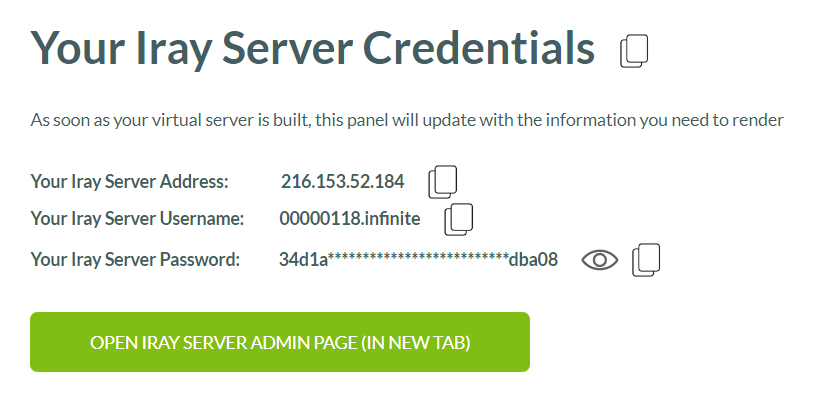
To access the Iray Server Admin page for the active session, click the green 'OPEN IRAY SERVER ADMIN PAGE' button in the Iray Server Credentials section of your Dashboard

<figure><img src="/files/RAK3r3BCwjHgr6AvPUi4" alt=""><figcaption></figcaption></figure>

Clicking this button will open up a new tab in your browser for you to sign in:

![](/files/B2rX72uXNenR7oxoMfnp)

Cut and paste the name (i.e. your **Iray Server Username**) and the **Iray Server Password** from the Iray Server Credentials section on your Dashboard, and click Login.

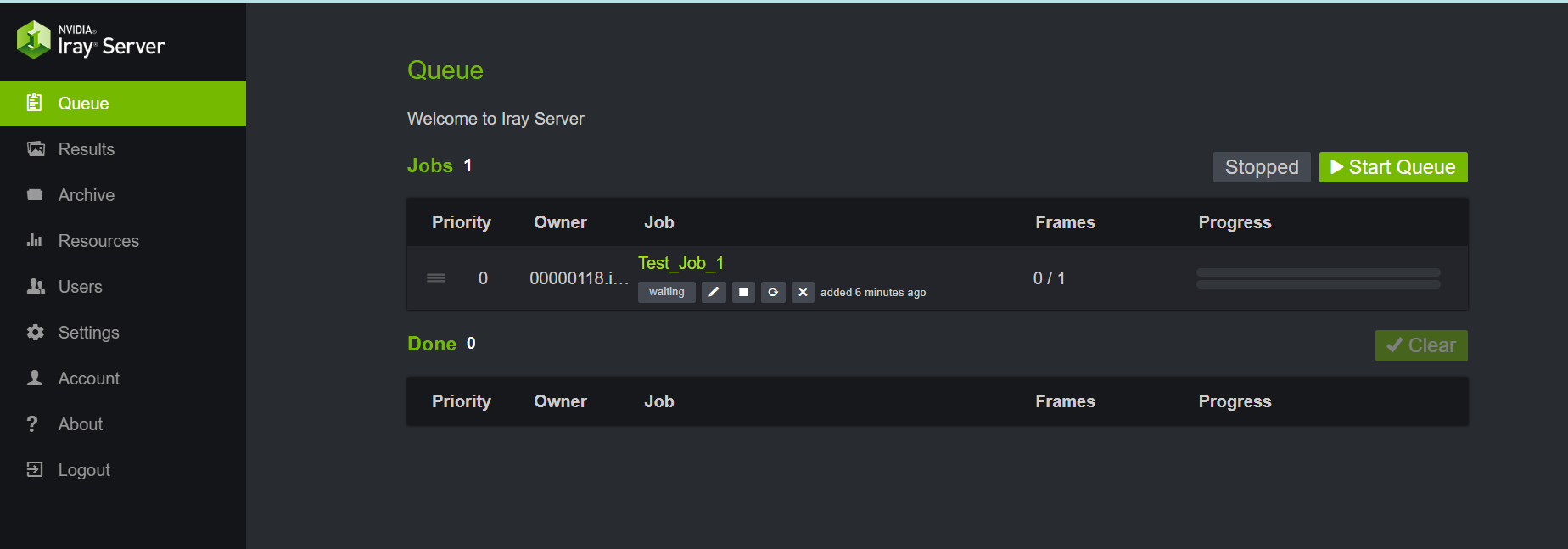
<figure><img src="/files/gFkyXYH5lCG6GhDBIUEy" alt=""><figcaption><p>Queue Screen displayed when first logging into Iray Server Admin</p></figcaption></figure>

The first screen presented in Iray Server Admin is the Queue screen, where you can see the (example) job 'Test\_Job\_1' added to the Jobs queue.

On the left is the Iray Server Admin navigation bar we'll use to move around the application.

## Starting a Queue

Once you have added one (or more) jobs to the queue, you will need to **start the queue** to actually initiate the process of rendering them.  This does not happen automatically.

To start rendering your jobs in the queue, simply click on the green Start Queue button on the top left of the Jobs section.

![](/files/ATmdVWqeFa6TjqjpwvsW)

<figure><img src="/files/w5iMjHwRgdDFsp2Oskb1" alt=""><figcaption><p>Iray Serve Admin Queue with Start Queue button highlighted</p></figcaption></figure>

Once you have clicked on the Start Queue button, in a few seconds Iray Server will start render your job(s) - starting with the first in the queue and moving sequentially down the list.  The available buttons now change to&#x20;

<figure><img src="/files/qO1RAzydPJoUfcCA9yyQ" alt=""><figcaption><p>Showing Buttons change once Start Queue is clicked</p></figcaption></figure>

* The orange Stop Queue button allows you to *pause or stop the whole queue*. In other words, the current job being rendered will be paused, and the queue will not move to the next job in the queue.  If you only have one job in the queue then it will pause rendering on that job.
* The Progress bars show you the current completion of the render
* These icons under the Job name, let you know which of your jobs is currently active and being rendered.  The stop button ![](/files/DtcyLmcwhNgb68GhnITZ) allows you to stop/ pause a specific Job in your queue.  The ![](/files/rt5SZB9sL2B77xO2yTfS) button allows you to duplicate the Job as a new entry into the queue.  This will prompt you to change the Job name (see below) as well as enable you to change different aspects of the render job, *without having to upload the file again.*

<figure><img src="/files/ymBVfFzxLt76IoIayIIY" alt=""><figcaption><p>Duplicate dialog modal showing aspects that can be changed on a job without uploading file again</p></figcaption></figure>

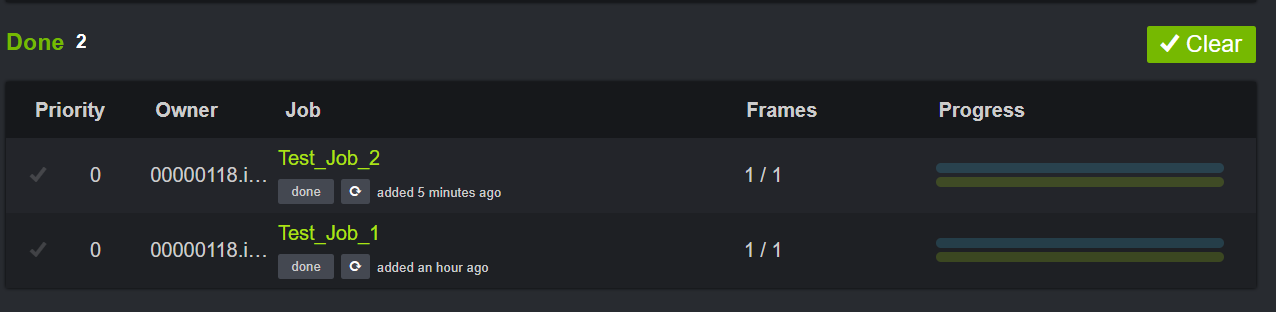
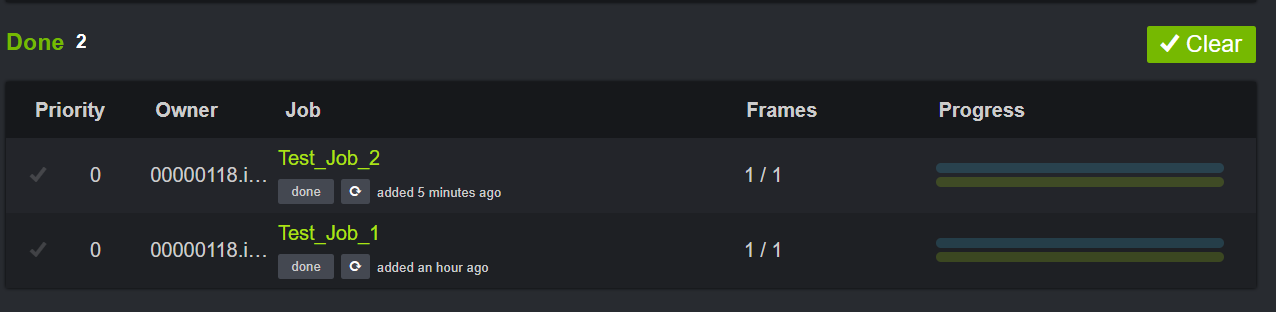
When renders are completed (or stopped) they are moved to the Done queue in Iray Server Admin Queue page

<figure><img src="/files/WqCnrFrkExXNzwMqcIk4" alt=""><figcaption><p>List of completed or stopped jobs</p></figcaption></figure>

## Stopping and Restarting a Job

When you click on the ![](/files/ItA1qP8G118JGwVN5tNu) button to stop a specific job, you are asked to confirm that action

<figure><img src="/files/gBddgM6lUIwAFkMer9uP" alt=""><figcaption><p>Request for confirmation when Stopping a specific job in your Queue</p></figcaption></figure>

The stopped job is then moved to the Done queue - which is a bit misleading because it has not completed rendering.  In our example, we stopped 'Test\_Job\_2' in the middle of its render progress,   confirmed Stop Now (see window above) and it moved to the Done queue - but there is no indicator that this job is incomplete. &#x20;

<figure><img src="/files/TaffU8uyjY5ex2BVH4ho" alt=""><figcaption></figcaption></figure>

To complete (or restart) a render in the Done queue, you will need to duplicate the Job, change the name, and allow it to go through the full render process until it moves down to the Done queue.

{% hint style="info" %}
As long as the orange Stop Queue button is displayed, any job added to the queue will begin rendering immediately in the sequence it was received.
{% endhint %}

&#x20;To stop the queue from processing renders, just press the orange Stop Queue button and it will revert back to the green Start Queue button.

## Downloading Render Results

So your render jobs are in the Done queue, how do you see or access the results.

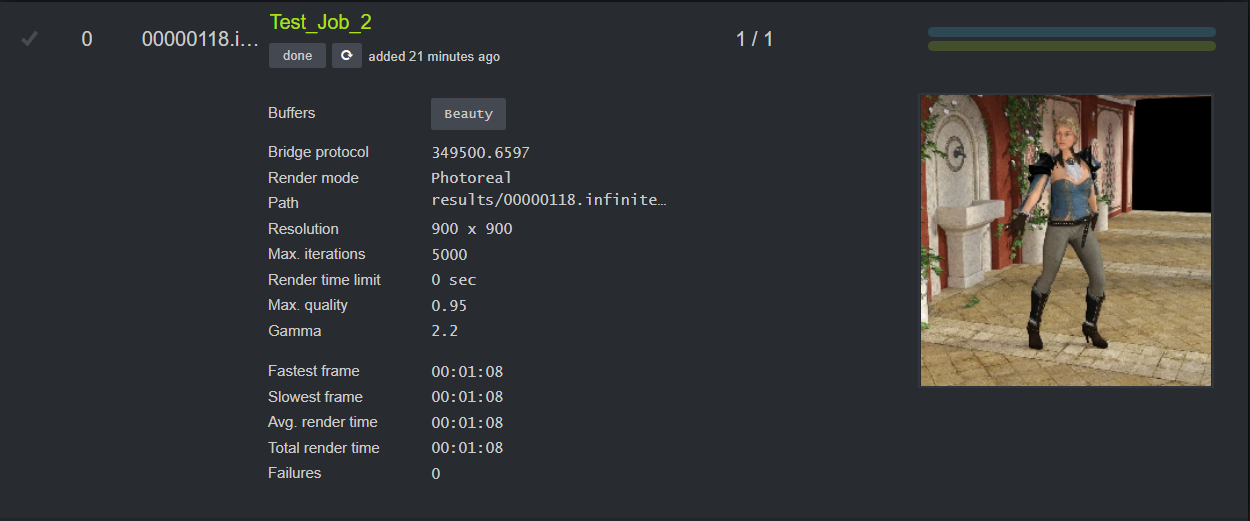
To see if the render completed successfully, click on the Job name in the Done queue, and you'll be presented with basic render information and a thumbnail of your render.

<figure><img src="/files/54CrqdPREKavTfpqKRrS" alt=""><figcaption><p>Clicking on a Job name in the Done queue offers additional job details and an image thumbnail</p></figcaption></figure>

To download your render results, click on Results from the navigation on the left of the Iray Server Admin page.

<figure><img src="/files/SWhBDsUuavKSFHWAkR8r" alt=""><figcaption></figcaption></figure>

..and if we click on Test\_Job\_2, we are presented with an option to download the zip file for our completed render.

<figure><img src="/files/iOV67Zh3fD3IhIKRX9qV" alt=""><figcaption><p>Click on Download ZIP to get the completed file for your render.</p></figcaption></figure>

## Iray Server Admin Useful Tips & Resources

The Resources page in Iray Server Admin offers is another section you want to familiarize yourself with.

![](/files/4FVSDKcZtZjvUGlnkwdf)

### Hosts section

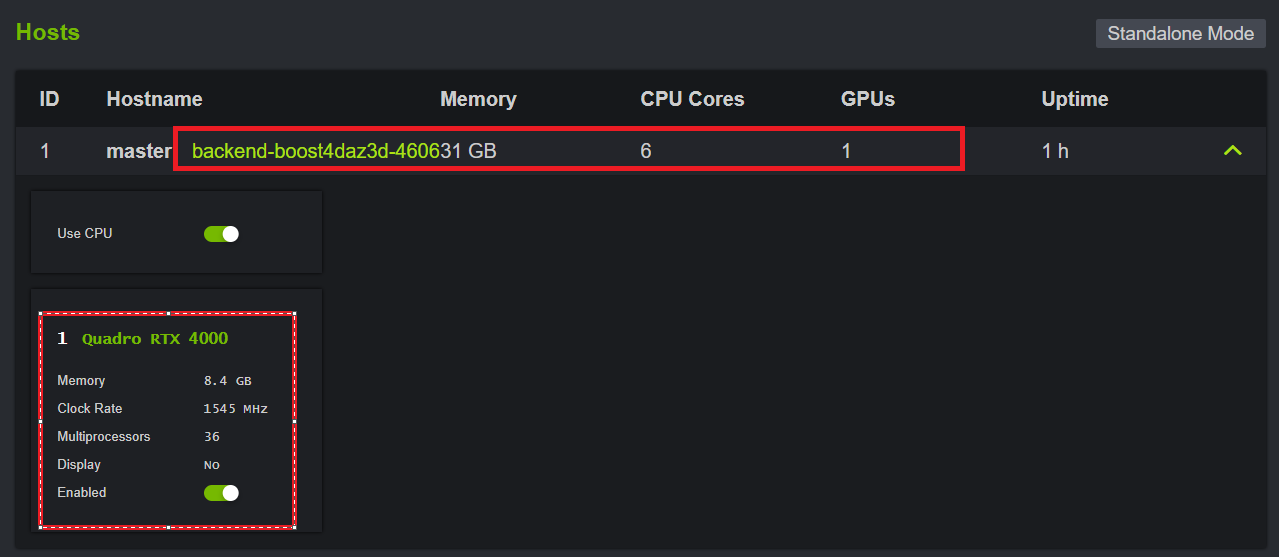
The Hosts section in the resources pages gives you specific information and confirmation about the actual type of virtual server that was privately assigned to you during this Boost for Daz session.

<figure><img src="/files/LqfxgzNoEaH0RY9uURrH" alt=""><figcaption><p>Specific details confirming your private Boost for Daz virtual server</p></figcaption></figure>

In this example above, this session asked for and received a single NVIDIA RTX 4000 GPU with approx. 8GB of VRAM, 31 GB CPU memory and 6 CPU Cores.   If you selected multiple GPU's, then details will be presented for each GPU.

### Logs section

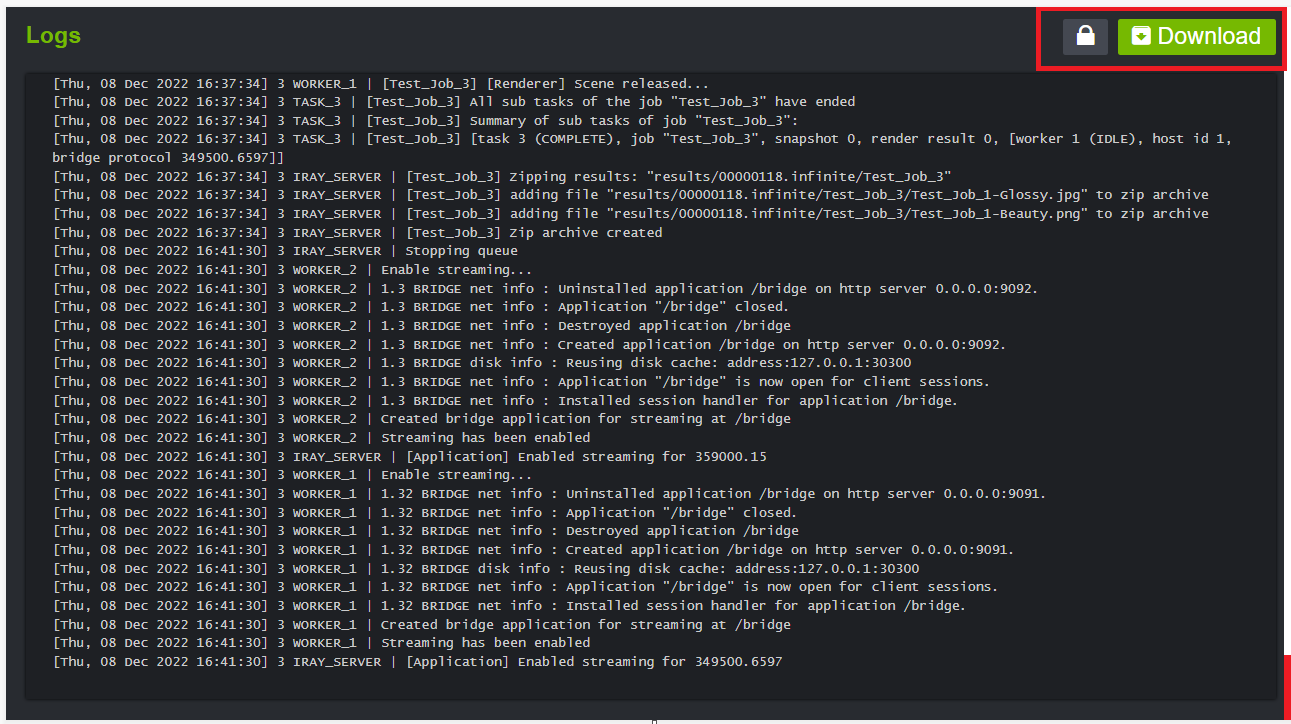
At times it might be necessary to access your Iray Server session logs to know whats going on during you render.  You can do that in the Logs section on the Resources page.

<figure><img src="/files/n0cSXhTCUn6Nv61fpbrI" alt=""><figcaption><p>Iray Server Logs window for your active session</p></figcaption></figure>

By default the Logs window is locked.  Click on the lock icon to unlock it and you'll be allowed to scroll up and down the logs for the duration of your session.  ***You can review session logs here  while your session is running as well.***  To download the logs to your local drive, click on the Download button.

## Logging Out of Iray Server Admin

On specific occasions you might want to (temporarily) logout of Iray Server.  For example, you have one or more Jobs in queue, and they will take some time, so to prevent anything happening by accident (or anyone with access to your rig from doing something untoward) you may choose to logout of Iray Server Admin, and log back in again if/when required. &#x20;

When you click on the Logout link in the navigation bar, you will be presented a confirmation

![](/files/ubVWL58rOr3md6hVFFRT)

click on Logout to return back to the Iray Server Admin page. &#x20;

![](/files/tYAjo8ZgBoeyCzDS9HWR)

You can log back in while you session is still active.

Please note that logging out of Iray Server Admin does not terminate or stop  your Boost for Daz session.  Your Boost for Daz virtual server and all its activity will continue even after your logout from Iray Server Admin.  To terminate your Boost for Daz session, you'll need to press the Stop button on your Dashboard.  This will end your session, calculate charges and stop billing.&#x20;

<figure><img src="/files/6myIS5oCHajikdmZchNs" alt=""><figcaption><p>To terminate your session, click on the Stop session button on your Dashboard</p></figcaption></figure>

## Download NVIDIA Iray Server Admin Guide

At the time of this writing, the file below is the latest version of the Iray Server Admin guide we could get our hands on.  If you are aware of a more current version, please let us know on our [Boost for Daz discord server](https://discord.com/invite/boostfordaz).

{% file src="/files/DECMqZDdIZQVjFhtA3mG" %}


# Using Auto-Shutdown Timer

What’s the purpose of the Session Auto-shutdown Setting on my Boost for Daz Dashboard?

The Session Auto-shutdown pulldown is used to control the duration of the active GPU session. *The default duration is 4.5 hours.* In other words, the duration set here will be the time your render session will run unless you terminate it before that time - assuming, of course, that you have successfully completed your render and you no longer need the GPU session. It’s important to note that whatever new time you change the Session Auto-shutdown value to includes the time already spent in the session (prior to this change).

So, for example, let’s assume that the current session time is the default 4.5 hours and you’ve already spent 1 hour in this session (i.e. 3.5 hours left unless you terminate it earlier). You feel you don’t require 3.5 hours, and you select a new Auto-shutdown value of 2 hours. This will reset the timer to 2 hours, but it will take into consideration the 1 hour that was already spent is in session. So the new remaining time left in the session will be 1 hour. However, if you choose a new Auto-shutdown value that is less than (or equal to) the duration already spent, then your session will immediately terminate and all renders in progress will be lost. So using the above scenario, if you picked a new Auto-shutdown value of 30 minutes. Since this (30 min) is less than the 1 hour already spent in the session, the remaining time will be negative, and the session will terminate.

Here are some additional examples of how the remaining session time is calculated for the Session Auto-shutdown:

![Boost for Daz Auto-Shutdown Timer Logic](/files/4GRZBUBEiVV9cJTZLaS1)

Session Auto-shutdown setting is useful in situations where you might have batched a number of render jobs on a particular GPU and you know that will take longer than the default (4.5 hours). In this case, you would pick your GPU, start your session, and then submit multiple batch jobs to the Iray server running on your selected GPU. Changing the auto-shutdown timer will effectively give you the convenience of a ‘set it and forget it’ feature. If you’ve timed it appropriately, your batch renders will complete, and your GPU will stop at the set time. This also gives you the added benefit of stopping your billing at the right time.

The Session Auto-shutdown can be set to last from 30 minutes to 12 hours, with a default duration of 4.5 hours. If a render takes longer than the duration set for the Session Auto-shutdown setting, it will be terminated.


# Save and Reuse Iray Server Queue Session Data (for 24 hours)

Save and Resuse prior Session data including your uploads, queue and results - for up to 24 hours

> **But first, what is included in my Session Data?**
>
> When Daz Studio prepares a [Render Package](/using-boost-for-daz/rendering-with-boost-for-daz/building-the-render-package) to upload to Boost for Daz, it includes the original .duf file as well as the associated assets, textures, instances etc. that will go into creating your scene as you intended.  This Render package is uploaded to the memory cache on your private GPU on Boost for Daz.  Your **Iray Server Session Data** includes anonymized uploaded data\*, queue data - job names and results, and Iray Server Admin settings.
>
> \**uploaded data*: anonymized assets, textures and snapshots (geometry from the .DUF file and references to the anonymized assets and textures used in the snapshot)

## **Scenarios**:

This feature is designed for the following scenarios:

#### Scenario 1 - Slow/unreliable internet connections.

Now you can upload and save the uploaded files in case of sudden session termination! Because, you know - life happens - and occasionally, internet connections drop or Daz Studio crashes. Working with medium to large projects over slower connections requires longer upload times - and a terminated session can be frustrating (not to mention wasted expense). In these scenarios, with this option activated, your uploaded files will be saved for reuse in a subsequent session (within 24 hours). You just come back and pick up where you left off. Voila!&#x20;

#### Scenario 2 - Save money for large files/ long uploads.&#x20;

Until now you had to pick a GPU to render your Daz project, paying for upload *and* rendering at the same GPU price. No more! We’ve separated those two steps - enabling you to upload to a lower cost CPU. Save Session data. Then, start a new session and load and reuse a prior sessions' data set with your GPU of choice to render your project.&#x20;

#### Scenario 3 - Need to use different GPU’s to render a project.&#x20;

You know your Daz project best, and your own instincts are invaluable when rendering a scene. But were human and sometimes we make a 'incorrect' GPU call.  Here are some examples of situations that will indicate an 'incorrect' GPU pick:

* You decide that you need to get things moving and finish up the render sooner than planned.
* Render taking much longer that you expected/ It's just too slow (for e.g. aspects and elements in your scene create complexity and may contribute to that nagging sense of ‘delay’).  One of the reasons is that the render drops (or 'fallback') to the CPU:

> **Are your renders 'dropping to CPU' ?**  When renders packages are too large to fit into the selected GPU's VRAM, then Iray Server 'adapts' by 'dropping' the render down to the CPU for processing.  This scenario is possible on your local rig as well as on the private GPU's you select on Boost for Daz.\
> \
> When this happens, rendering goes down to a crawl and takes much much longer to complete than with the right-sized GPU.  ([Learn how to pick the right GPU](/extras/top-tips-and-tricks/pick-the-right-gpu-for-your-specific-project))&#x20;
>
> The recommended solution is to stop the current session, and start a new session with the right-sized GPU and resuse this (or any prior) session's data with the new bigger GPU. \
> \
> At the moment, there are no visual indicators that Iray Servers has dropped rendering to the CPU. The best way to confirm this is to look at your Iray Server logs for the current session.  The tell-tale clue would be log entries that contain the following text (for a sample RTX4000):
>
> *\[Wed, 28 Dec 2022 00:08:10] 1 WORKER\_1 | 1.26 IRAY rend error: CUDA error: out of memory*&#x20;
>
> *\[Wed, 28 Dec 2022 00:08:10] 2 WORKER\_1 | 1.35 IRAY rend warn : CUDA device 0 (Quadro RTX 4000) ran out of memory and is temporarily unavailable for rendering.*\
> \
> If you find this text in your Iray Server logs, it's time to save session data; terminate session, and start new and resuse the prior sessions' data loaded onto a right-sized GPU.

#### Scenario 4 - Session Shutdown by Auto-Shutdown Timer

The default [Auto-shutdown Timer](/using-boost-for-daz/rendering-with-boost-for-daz/rendering-the-daz-project/using-auto-shutdown-timer) is 4.5 hours, so if a render job (Streaming or Queuing) takes longer than that, and unless reset to a larger value, the Auto-shutdown timer will terminate the render.   This termination could happen after all the renders in the queue are complete or prior to some of the renders completing.

Previously, either way, once the session was terminated, your private GPU was flushed and all data was lost. &#x20;

Now, by activating the *Save/Reuse Session Data* feature you can get access to your session data even after the Timer shuts down your session. All queue jobs are saved at the state they were in when the session was shut down - waiting or completed - and your results are there too.  All that is lost is any queued render job that was actually in process during the time the session was shutdown.&#x20;

#### Scenario 5 - Life happens (and your dog desperately needs her walk)

You can stop your session (which also stops the billing) and come back to it within 24 hours and pick up where you left off.   One of the benefits of reusing a prior sessions' data set loaded onto a new GPU, is that any new changes made to that project in Daz Studio and subsequently rendered (via Streaming or Queuing), will only upload the changes (reducing your render times significantly).

{% hint style="info" %}
If you have a fast internet connection (approx. greater than 50Mbps) upload speeds ([learn how to check your connection speed](/extras/top-tips-and-tricks/is-your-internet-upload-speed-enough)) then the benefit of this feature might be minimal.
{% endhint %}

> **What is included in my Session Data?**
>
> When Daz prepares a Render Package to upload to Boost for Daz it includes the original .duf file as well as the associated assets, textures, instances etc. that will go into creating your scene as you intended.  This Render package is uploaded to a memory cache on your private GPU on Boost for Daz.  Your **Session Data** includes this Render Package (.duf file plus all the associated elements such as assets, textures, etc.); your render Results that are generated during the rendering process (*if you chose to render using Queue*); and your Iray Server queue jobs and related data (*if you chose to render using Queue*).

### Using "Save and Reuse Session Data" Feature

Follow these steps to select and use the ‘Save and Reuse Session Data’ feature on Boost for Daz:

[Step 1 - Enable Save Session Data](#step-1-enable-save-session-data)

[Step 2 - Reuse a Prior Sessions' Data Set](#step-2-reuse-a-prior-sessions-data-set)

#### Step 1 - Enable Save Session Data

To enable saving of your Sessions' Data set, check the "Preserve Session Contents for 24 Hours" checkbox in the GPU variant selection dialog on Boost for Daz.  (*For your convenience, this checkbox is preselected by default.*)

<figure><img src="/files/qiIxnG8CTSUme14ATlQD" alt=""><figcaption></figcaption></figure>

Then proceed as normal, to select the 'I confirm' checkbox and then click on the Start Session button.

<figure><img src="/files/Ov1ssHUCkmUs843Ddo4e" alt=""><figcaption></figcaption></figure>

Now all your Session Data for this session will be stored.&#x20;

{% hint style="warning" %}
Session data is stored for 24 hours - from the time of session termination - at no additional charge.  After 24 hours - from the time of session termination - the session data will be deleted and will no longer be available.

For your convenience, the 'Preserve Session Contents" checkbox is selected by default.  However, if you choose NOT to save your session data by ***explicitly unchecking the box***, then all your session data will be flushed when you terminate your session, and will not be available for reuse when you choose to start a new session later.
{% endhint %}

#### &#x20;Step 2 - Reuse a Prior Sessions' Data Set

Reusing a sessions' data set essentially loads back into the cache of your selected (same or different) GPU, all the uploaded source files, associated assets, queue jobs (if any) and prior results (if any) at the time of that sessions termination.

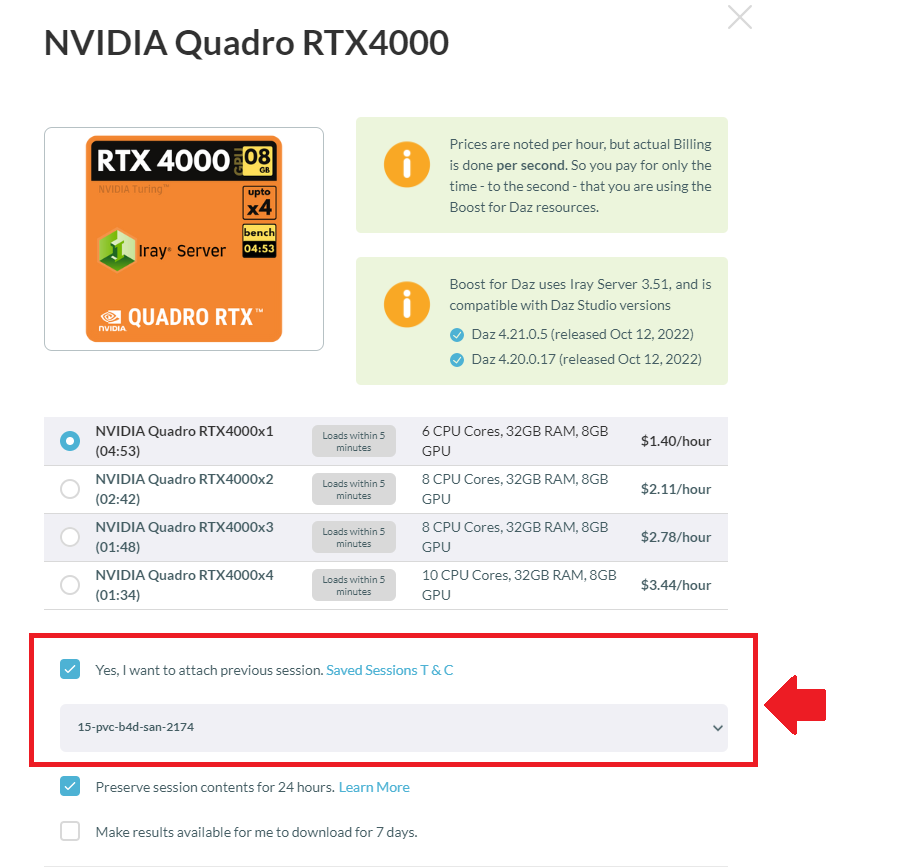
To reuse a prior sessions' data set, there are two micro steps required.  You first need to (a) enable the reuse checkbox, and then (b) select the session whose data set you'd like to reuse.&#x20;

(a) **Check** the '*Yes, I want to attach a previous session*' checkbox before starting a session.

<figure><img src="/files/IBlVFVGDN7jNtEeQhILw" alt=""><figcaption></figcaption></figure>

(b) Select from a list of previously stored session data sets associated with this account. This list is displayed in *reverse chorological order* - i.e. your last/latest session's data set, is at the top of the list.

At the time of this writing, you can have 15 (fifteen) as the *maximum number* of prior stored Session data sets available in your list.

Once you select the desired session data set to resuse, proceed as normal by selecting the 'I confirm' checkbox and then clicking on the Start Session button.

<figure><img src="/files/Ov1ssHUCkmUs843Ddo4e" alt=""><figcaption></figcaption></figure>

### Common Questions Answered

**What if I don't select the "Yes, I want to attach previous session" checkbox?**

If you choose to start a session ***without selecting this checkbox,*** then your new session will start and initialize your selected GPU as a 'clean slate' session.  A '*clean slate*' session is a fresh, new session - and where no previous session data set is reused.  In this scenario, if you left the 'Preserve session contents' checkbox selected and then started the session, then any session data created during this new session will be saved (and subsequently reusable) at the termination of this session.

**What if I don't select BOTH - save session and reuse session data - checkboxes?**

If both checkboxes are unchecked when the Start session button is clicked, the new session that is created with your selected GPU will be a *clean slate* session, and upon termination no session data will be saved.  Again, in this scenario, the data set from this clean slate session will **not** be available for reuse later.

**Can I change my mind about saving a Sessions data&#x20;*****after*****&#x20;starting a session?**

Yes!  You can choose to *not save* Session data by unchecking the 'Preserve session contents' checkbox from your Boost for Daz dashboard, **prior** to Stopping your session.

<figure><img src="/files/31J4M4kkRj5yDQMCTExV" alt=""><figcaption></figcaption></figure>

If you uncheck this checkbox from your Dashboard and then Stop your session, then this will override your previous intent to save session data and all session data will be flushed (deleted) at the end of this session.

{% hint style="warning" %}
These checkboxes above will be selected or unselected based on a User's previous session choices.  In other words, if the User were to start a session with the  "Save Results" option unchecked, the next time the User logis in the "Save Results" will also be unchecked.  \
\
Of course, the User has a choice to explicitly change that by selecting the option **prior to starting a session.**
{% endhint %}

**What if I just want to get the results of my queued renders from a previous session?**

We got you covered!  [Get access to and download the results of previous queued render sessions ](/using-boost-for-daz/post-render-options/download-render-via-queue-results-zip-file-7-day-window)(from up to 10 days ago).<br>


# Black Screen When Rendering?

Different rendering scenarios that can result in your resulting render being a black/ blank screen. Learn why and how to fix it.

In certain scenarios, your resulting render using Boost for Daz might turn out to be a black screen.  We've documented the different scenarios and possible solutions below.

Black Screen Renders can occur during:

* [Streaming mode](#black-screen-when-rendering-using-streaming-mode)  ([learn more about this mode](/using-boost-for-daz/rendering-with-boost-for-daz/rendering-the-daz-project/streaming-vs-queuing-modes))
* [Queueing mode](#black-screen-when-rendering-using-queuing-mode) ([learn more about this mode](/using-boost-for-daz/rendering-with-boost-for-daz/rendering-the-daz-project/streaming-vs-queuing-modes))

### Black Screen when Rendering using Streaming Mode

Review all...because one or more of the following scenarios might apply to your specific situation. *If none, reach out to us on* [*Discord*](https://discord.com/invite/boostfordaz) *and let us know, so we can help you figure it out.*

<table><thead><tr><th>Potential Cause</th><th>Proposed Solution</th><th data-hidden></th><th data-hidden data-type="number"></th></tr></thead><tbody><tr><td><strong>Nitro mode is ON</strong><br><br>You'll find this option under Advanced Tab > Bridge Tab<br><br><img src="/files/JIYtW17jW2H4mEXIVhV8" alt=""></td><td><strong>Turn Nitro to OFF</strong> prior to clicking on the Render button<br><br><img src="/files/EUc1vbmmnF0Z6HSOS7bI" alt=""></td><td></td><td>null</td></tr><tr><td><strong>Daz Studio Max Time parameter is NOT 0 (zero)</strong><br><br>You'll find this under Editor tab > Progressive Rendering (parameter) > Completion<br><br><img src="/files/enyHGNCH4jk0SMtIeaOT" alt=""><br><br>The default value is typically 7200 seconds (2 hours), so if your render takes longer - it times out and delivers a blank screen.</td><td><strong>Set Max Time to 0</strong> (zero).<br><br><img src="/files/KepfhCdg5fMrzxlUqxdj" alt=""><br><br>Setting Max Time parameter to 0 (zero) effectively sets the render time to infinity. So however long the render takes, Daz Studio does not time out.</td><td></td><td>null</td></tr><tr><td><strong>Render Package too large for selected GPU</strong><br><br>If the <a href="/pages/UCTKL2NtiAsJ6DWwi25r">render package</a> (created once you hit the render button) for your project is too big to fit into the VRAM of the GPU that you selected, Iray Server is unable to render using the GPU, and as a protective measure, falls back to using the CPU on Boost for Daz.  (This is a default Iray Server behavior).  However, rendering via CPU is not supported in Streaming mode. As a result, the render is unable to complete and results in a black screen.</td><td><strong>Pick a GPU that is sized properly for your specific project</strong><br><br>Use our handy <a href="/pages/L0tvh0jbLmyVvzF1a1jY">GPU guide</a> to select the GPU with the appropriate amount of VRAM to accommodate your complete render package.  Doing this correctly will avoid the Iray Server having to fallback to CPU rendering and black screens.</td><td></td><td>null</td></tr><tr><td><strong>GPU is turned off in Iray Server Admin (rare)</strong><br><br>Prior to hitting the Render button, if the GPU is turned off through the Iray Server Admin, this will effectively signal the Iray Server attempt to render your project using the CPU as a fallback.  And since CPU rendering is not supported via Streaming, this results in a black screen render result.</td><td><strong>Make sure GPU is turned on</strong><br><br>Login into Iray Admin, select Resources from the left nav bar and check under the Hosts section.  Make sure your GPU toggle is enabled(green).<br><br><img src="/files/bgJTz89zdp8rZ8DISStC" alt=""></td><td></td><td>null</td></tr><tr><td><strong>Iray (in Daz Studio) mismatch with Iray Server (on Boost for Daz)</strong><br><br><strong>Notice rendering progress resetting/looping after a specific iteration</strong><br><br>Though we do our best to keep in sync with all Iray updates within Daz Studio, there have been some instances when the Iray version in the Daz Studio version you are using does not <em>exactly</em> match the Iray Server version supported at that moment on Boost for Daz.  In these instances, we sometimes see that the render gets stuck and keep iterating on a specific frame.  (You can check this by reviewing your local DS logs). Over time this might time out and result in a black screen.</td><td><strong>Sync up your Daz Studio Iray version to that which is supported on Boost for Daz</strong><br><br>Check out our <a href="/pages/lk6jgit5n2t33E8Sausk">current Iray Version compatibility chart</a>, and upgrade your Daz Studio accordingly.  <br><br>There might also be possibility of the render not having enough time to save its progress for large format scenes (typically > 2000 x 2000).   Check out this <a href="/pages/UlITZnQ6rCILpH969njf">article </a>to resolve that.</td><td></td><td>null</td></tr><tr><td><strong>Catch all condition:  If none of the above don't apply</strong><br><br>In that event, its possible that there is a glitch in the actual Daz Studio file, or a glitch in Iray Server.  This can happen even if the Iray server versions match!<br></td><td><strong>Reach out to us on our</strong> <a href="https://discord.com/invite/boostfordaz"><strong>Boost for Daz Discord server</strong></a><br><br>Opening a private ticket on our <a href="https://discord.com/invite/boostfordaz">Discord server</a> will allow us to review and assist your specific case.  We'll need to know (a) your Boost for Daz registered email (b) your session number (from your Dashboard).<br><br>We want this to work for you!</td><td></td><td>null</td></tr><tr><td><strong>Check to see if the Max Time parameter is set to -1 (negative 1)</strong><br><br><img src="/files/C7ajno9UIiLCxoF8atN3" alt=""><br><br>A Max Time parameter of -1 sometimes creates problems and can result in black screen render results.</td><td><strong>Set Max Time to 0</strong> (zero).<br><br><img src="/files/KepfhCdg5fMrzxlUqxdj" alt=""><br><br>Setting Max Time parameter to 0 (zero) effectively sets the render time to infinity. So however long the render takes, Daz Studio does not time out.</td><td></td><td>null</td></tr></tbody></table>

### Black Screen when Rendering using Queuing Mode

Review all...because one or more of the following scenarios might apply to your specific situation. *If none, reach out to us on* [*Discord*](https://discord.com/invite/boostfordaz) *and let us know, so we can help you figure it out.*

<table><thead><tr><th>Potential Cause</th><th>Proposed Solution</th><th data-hidden></th></tr></thead><tbody><tr><td><strong>Special characters used in Job Name</strong><br><br>When adding a project to Iray Server queue, Daz Studio dialog requires you to enter a Job Name.<br><br><img src="/files/rxlkCXRTdFWfQAu2FsB1" alt=""><br><br>Unfortunately, Daz Studio will NOT give you any errors or warning.  You need to make sure to use <em>only</em> letters, numbers, underscore and - (dash) in the queue Job Name.  Do not use any special characters such as * &#x26; ^ % $ # @ ! or ~.   When special characters are used in the Job Name, the render results in a blank render.</td><td><strong>Ensure that no special character are used in the DS queue Job Name</strong><br><br>Use only letters, numbers, underscore and - (dash) in the Job Name.   Do not use any special characters such as * &#x26; ^ % $ # @ ! or ~.  </td><td></td></tr><tr><td><p><strong>GPU falling to CPU and exceeding the Time parameter</strong><br></p><p>Similar to the situation noted in the Streaming scenarios above, if the size of your render package exceeds the VRAM available in the GPU you selected on Boost for Daz, then when using Queue mode, this will fallback to using CPU.  Understandably, this will slow your rendering process down significantly - and its possible that it might take longer that your the time set in your Max Time parameter in Daz Studio.<br><br><img src="/files/311EEtjAK1EIKnMOINQx" alt=""><br><br>You'll find this under the Editor tab > Progressive Rendering (parameter) > Completion (parameter).<br><br>If your render exceeds this Max Time parameter, your rendering will complete with a black screen.<br><br><br></p></td><td><strong>Pick a GPU that is sized properly for your specific project</strong><br><br>Use our handy <a href="/pages/L0tvh0jbLmyVvzF1a1jY">GPU guide</a> to select the GPU with the appropriate amount of VRAM to accommodate your complete render package.  Doing this correctly will avoid the Iray Server having to fallback to CPU rendering and black screens.</td><td></td></tr><tr><td><p><strong>Queue Job is rejected (as soon as you enter valid Job Name)</strong><br><br>If you find the the queue job is rejected - typically experienced when you are entering the Job name and hit OK - and nothing happens, or you see an error.<br><br><img src="/files/JE3wtPHj3EFLm1WfPtOz" alt=""><br></p><p>Check to see if the Max Time parameter is set to -1 (negative 1)<br><br><img src="/files/C7ajno9UIiLCxoF8atN3" alt=""><br><br>A Max Time parameter of -1 prevents the queue job from being created.</p></td><td><strong>Set Max Time to 0</strong> (zero).<br><br><img src="/files/KepfhCdg5fMrzxlUqxdj" alt=""><br><br>Setting Max Time parameter to 0 (zero) effectively sets the render time to infinity. So however long the render takes, Daz Studio does not time out.<br><br>Once Max Time parameter has been changed, then try to Add to Queue with a valid Job Name.</td><td></td></tr><tr><td><strong>Iray (in Daz Studio) mismatch with Iray Server (on Boost for Daz)</strong><br><br><strong>Notice rendering progress resetting/looping after a specific iteration</strong><br><br>Though we do our best to keep in sync with all Iray updates within Daz Studio, there have been some instances when the Iray version in the Daz Studio version you are using does not <em>exactly</em> match the Iray Server version supported at that moment on Boost for Daz.  In these instances, we sometimes see that the render gets stuck and keep iterating on a specific frame.  (You can check this by reviewing your local DS logs). Over time this might time out and result in a black screen.</td><td><strong>Sync up your Daz Studio Iray version to that which is supported on Boost for Daz</strong><br><br>Check out our <a href="/pages/lk6jgit5n2t33E8Sausk">current Iray Version compatibility chart</a>, and upgrade your Daz Studio accordingly.  <br><br>There might also be possibility of the render not having enough time to save its progress for large format scenes (typically > 2000 x 2000).   Check out this <a href="/pages/UlITZnQ6rCILpH969njf">article </a>to resolve that.</td><td></td></tr></tbody></table>


# Why is my render taking so long?

Are you seeing looping render iterations in your Iray Server logs?  You may have run into an Iray Server bug.  Here's what you can do...

We are working directly with the NVIDIA Iray Server team to validate and resolve this issue (resolution time is unclear at the moment), but fact is that there is a bug that occasionally pops up its ugly head - unpredictably - for jobs that are submitted to the Iray Server queue of any size, but probably for jobs near or over 4megapixel (2000x2000)

### Issue Explained

Your instincts as a Daz artist are well honed to when you feel that a 'render should be done by now'.  That's important to acknowledge and appreciate.

So when you sense that a renders appear to be taking longer than it needs to when running queued renders, you check in the logs and see that the render seems to be stuck at a specific iteration and keeps resetting back to iteration 1. &#x20;

The essence of this issue lies in a Iray Server parameter called *Canvas Update Interval*.  This value tells Iray Server how often to write the results of the active render job to disk.  This bug manifests itself when Iray Server starts the render process over again at the canvas update interval.

This is the reason why your render is taking long.  It's stuck in loop...and its wasting your time and money.  So how do you reduce the chances of this happening to you?  That's next.

### Solution Explained

The Iray Server parameter called *Canvas Update Interval* can be viewed and changed through the Setting page in the Iray Server Admin application.  You can learn more about accessing and using Iray Server Admin [here](/using-boost-for-daz/rendering-with-boost-for-daz/rendering-the-daz-project/quick-guide-to-iray-server-admin-+-queue-management).

![](/files/hpFevbt16FqPGjpGnBT1)

The default canvas update interval for Iray Server is set by NVIDIA to 8 seconds but that might not be enough for these larger projects when the bug is triggered.

Follow these steps to effectively prevent the chances of this happening to you:

#### Step 1 - Fine Tune *Convergence* and *Max Iteration* Values

Do some fine tuning that can help reduce the render burden and duration for your project.  Based on what we've seen in advising many established Daz artists, we recommend taking a good, hard look at your *Convergence* and *Maximum Iterations* values.

As you know, your render will (technically) be complete when either one of these values in reached first - either Convergence or Maximum Iterations.

Many Boost for Daz customers feel that .95 convergence is overkill, and recommend that most should target .85 for still images and .70 for animation frames.

Then consider if its possible to reach that Convergence level is less iterations.  Pick the minimum Max Iterations value that you feel will get you the desired Convergence level.  If not, change and render it again.  (You will not have to upload any Daz files after the initial upload, so any subsequent renders happen are completed quicky).&#x20;

Setting the minimum viable Convergence and Max Iterations values will help optimize the time, expense and quality of your renders.

#### Step 2 - Pick the RIGHT GPU for your specific project

Be sure to choose a GPU (or set of GPUs) that can get the job done in that time frame. The trick is in ensuring that your project fits entirely into the VRAM with some (acceptable) room to spare.   [Learn how to roughly size and pick for the right GPU for your project](/extras/top-tips-and-tricks/pick-the-right-gpu-for-your-specific-project).&#x20;

#### Step 3 - Change the *Canvas Update Interval* value

Change the Canvas Update Interval to 9000 seconds (=2.5 hours) **prior** to starting the queue.  [Learn how to configure Iray Server Admin for large project sizes.](/extras/top-tips-and-tricks/iray-server-settings-to-maximize-render-performance-for-large-format-greater-than-2000x2000-scenes)


# Rendering Animations with Boost for Daz

Using Boost for Daz (Streaming mode) for rendering animations is effective and convenient when you follow this streamlined sequence

Wouldn't it have been great to queue your Daz animations and let them rip? \
\
We totally get how cool that would have been....but lets gently go of that dream, because it does not exist.  As of this moment, Daz animations are rendered only via Streaming.\
\
But the good news is that, in addition to helping accelerate your rendering workflows for images, Boost for Daz can also be used to setup and accelerate your animations.  For many, Boost for Daz is the first place Daz artists can even try their hand at exploring and expanding their creative boundaries with animation, because their local rigs (laptops or macs) cannot.  \
\
So we wanted - no, needed - to outline the steps to do animations with Boost for Daz in the most straightforward way possible. It may seem a bit overwhelming, but that *might* be the case only the first time.  Once you get the principles behind the sequence recommended here...you'll be all set to do use Boost for Daz to render your animations frequently, with no issues.  Here goes.

#### Step 1 - Recommend watching Jay Versluis' video on Animation Basics using Daz Studio

Jay is a Daz published artist (PA) and a respected developer of digital art and content. He also authors and hosts a number of Daz livestreams.  Jay is also an active Boost for Daz user, as are many of his viewers and supporters.  \
\
As a first step, we recommend watching [Jay's video](https://www.versluis.com/2020/04/my-animation-workflow-in-daz-studio-the-basics/) so you refresh Daz animation basics. &#x20;

(*Video reference link:  <https://www.versluis.com/2020/04/my-animation-workflow-in-daz-studio-the-basics/>*)

#### Step 2 - Pick the right GPU

Before even starting the animation process, you need to settle on a GPU. This is important because if your GPU and its available VRAM is not sized correctly, your animations will fail and it will just negate the entire animation experience.  Now many of you might have a gut instinct (using your local rigs as a reference) as to which GPU from the Boost for Daz catalog might be a good starting point for your intended animation project.  Pick your top two or three (consider VRAM and speed).

Next, we recommend that you use our [GPU guide](/extras/top-tips-and-tricks/pick-the-right-gpu-for-your-specific-project) to zero in on your first choice. Extra work? Perhaps.  Worth it? For sure!

#### Step 3 - Initialization and priming/preparing the Queue

In this step we're going to prime our GPU for speed. We'll do this by **uploading only the&#x20;*****first*****&#x20;frame** of your animation to the queue on the GPU you selected. This serves two purposes: &#x20;

1. Uploading the first frame into the Iray Server queue will load onto the GPU memory most (if not all) of the assets used in your animation, including (but not limited to) the .duf file, Daz store assets, non-Daz store assets (if any), shaders, textures, instances etc.
2. Once on Boost for Daz, if for whatever reason we need to change/upgrade our GPU, we can do that without having to upload all the files again.  This is especially helpful for people with internet connections with low-medium bandwidth.

Follows these steps to upload the first frame of your animation to the queue:

a) Open your animation project in Daz Studio. (Remember to [ensure that your DS version is at the supported versions](/basic-requirements/daz-studio-version-compatibility)

b) Establish a Boost for Daz session (if not already)

c) Set the *Render Type* parameter for the project is set to *Still Image (Current Frame).*  Make sure that you have filled the **Image Name** and **Image Path** fields.  Daz will need this to create your local animation frames.

<figure><img src="/files/nf9aSaXMVTn5P6o7iH2O" alt=""><figcaption></figcaption></figure>

d) Enter your credentials into Daz Studio

<figure><img src="/files/vZ9CSdclDrEljVhtkxdX" alt=""><figcaption></figcaption></figure>

e) Click on 'Add to Queue'.&#x20;

At this point, Daz Studio will [create your render package](/using-boost-for-daz/rendering-with-boost-for-daz/building-the-render-package) and upload it to your private virtual server on Boost for Daz - along with the supporting files and assets.

#### Step 4 - Do a 1st pass check of the basics (test animation)

Now that your project is on Boost for Daz, it will stay there as long as you are connected to Boost for Daz.  The following steps help you perform a quick 'health' check to see if all basics for your final animation are in place.

**a)** (Temporarily) **Reduce the image Dimensions to 100 x 100 for your project** (or something close to that given the aspect ratio of your project)

<figure><img src="/files/Uy0te0QRjU0srpY1z9Th" alt=""><figcaption><p>Reduce the Dimensions for your project</p></figcaption></figure>

Reducing the Dimensions and the number of frames just allows you to test quickly so adjustments can be made sooner, if required.  Later, you'll be resetting these parameters to your desired values.

**b) Set Render Type to 'Image Series' and reduce the Render Range to a small (testing) number**

<figure><img src="/files/r5MF3v5L3xUdBmLH7dHC" alt=""><figcaption><p>Change Render Type to Image Series</p></figcaption></figure>

{% hint style="info" %}
Setting the Render Type to 'Image Series' is a recommended best practice.  This creates a frame for every step in your animation and saves them in the directory noted in the Series Path section of the Destination parameters. (see sample image above).\
\
This serves two purposes:

1. In the event there is a problem with the render, then your progress is saved.  And you can pick up where you left off in the next render.
2. Sometimes Daz Crashes and this option again will help save your work - and not have to start from the beginning again!

Most people select the Movie option for Render Type.  With that option Daz Studio also  renders each frame (saving them to a temporary, hidden folder) and then after the last frame is rendered, it stitches them together into a 'movie' using a built in tool.  We'll recommend some tools that can do this for you later in the article.
{% endhint %}

**c)** **Render your animation using Streaming**

Using the same Iray Server credentials in Step 4 (above), connect to Boost for Daz (if not already connected), render your test animation setup using Streaming mode, using the following steps:

1. Connect to Boost for Daz
2. Enable Render via Streaming checkbox
3. Click on Render button

<figure><img src="/files/1dJF16PXblNX5u9KPG4t" alt=""><figcaption><p>Steps to Render your test animation via Streaming mode on Boost for Daz</p></figcaption></figure>

> #### <mark style="color:red;">**IMPORTANT**</mark> - As Iray processes the frames you submit for rendering, it checks to see if it has all the information (assets, environment, textures etc.) for it adequately render those frames.  If it does, then it will proceed with the animation.  However, if while going through the frames Iray decides that the frame has enough changes and that it needs more information, it will ask Daz to send that up to it.  In these instances, during the animation rendering process, you will see Daz pausing to upload the required information to the Iray Server to render that frame.  You can reduce the impact of this by either (a) simplifying the number of differences across frames in your animation (b) broaden the range of frames to test in **Step 4** using a smaller frame size.  This will get all the right assets to the Iray Server across a set of frames more inclusive of the changes across your animation, and will take less time since it is rendering a small frame size.  If all that works, then rendering the full animation at the desired resolution in **Step 5** will be much smoother and faster.

**d) Check 1st Pass (test) animation results**

Once the rendering is complete, go to the folder (set in the Series Path parameter \[Editor Tab > Destination parameter set]) and check to see that all your frames have been created.

**e) Convert the frame into a 'Movie'** (e.g. mp4) to check to see your animation is correct.  You can do this using a tool you may already have, or refer to this [list of free and paid image to video convertor tools](https://geekflare.com/convert-images-into-video/).

If your animation looks good and what you expected, let's proceed further to 'make it official'.  If you need to make adjustments, then do those and follow the 1st pass (test animations) instructions again until you are happy with the test animation.

#### Step 5 - Redo animation with desired parameters

If you've reached this step, chances are you have a small little movie of you animation that represents the animation you desired.  This step will help us create the final animation using the actual parameters you desire for your animation.

**a) Change (or clean up) the Series Path directory** so your rendered frames for your actual animation are stored separately or are easily identified (and not confused with your test animation frames).  (Recommended, not required step)&#x20;

**b) Change the Dimensions to your desired dimensions**

**c) Change the number of frames to cover the entire frame range of your animation**

**d) Redo the Animation** (following the step 'a', 'b' and 'c') in Step 4 above.

**e) Stitch the frames into the desired animation clip** (step 'd' and 'e')


# Post Render Options

Things you can do after your render has finished.


# Download Render (via Queue) Results (ZIP file) - 7-day window

Download past results of your Boost for Daz queued render sessions - for up to 7 days (from when first saved)

**Ever wished you could get your hands on your Boost for Daz Queued render results after you've ended the session? Even one from a few days ago?**  Poof…done! And here’s how to set that up and then access your reports (for the last 7 days).

[Step 1 - Enable Saving of Queue Render Results](#step-1-enable-saving-of-queue-render-results)

[Step 2 - Access your Session Statistics Page](#step-1-access-your-session-statistics-page)

[Step 3 - Download (zip) results for a specific session](#step-2-download-zip-results-for-a-specific-session)

> **But first, what are these render results?**
>
> With the Render via Queue capability that Boost for Daz offers, it's possible now to only get access to and to download the completed renders from the jobs in your queue.  These are the exact same files that you would have normally downloaded from your Results tab in Iray Server Admin.  But, wait...there more.\
> \
> With Iray Server Admin you would have had to download the results of each job separately, whereas now the the Queue Results capability, we provide a *single* zip file containing all the render results from all the jobs that successfully completed rendering during that Session.

#### Step 1 - Enable Saving of Queue Render Results

In order to get you queue render results, you first need to tell Boost for Daz to save them.   To do that, select the 'Make Results available for me to download' checkbox.

<figure><img src="/files/8ljSqM0VGNfHfotqJiLW" alt=""><figcaption></figcaption></figure>

Then proceed as normal, to confirm the (required) Terms and Conditions checkbox and select the Start Session button.

<figure><img src="/files/Ov1ssHUCkmUs843Ddo4e" alt=""><figcaption></figcaption></figure>

{% hint style="info" %}
**What do you do if you forget to check this 'Make results available' checkbox (or accidently uncheck it)?**\
\
The good news is that all is not lost.  Recall that all your Iray Session data is stored for 24 hours for you. So (even if your forget to check the results checkbox) to get your results, you just have to start a new session; reload the session in question; and then log into Iray Server admin (opens a new browser tab) and go to the Results link in the navigation.  Scroll down to 'Download ZIP' for your session results!  [Learn more about saving and reusing Iray Server Session data.](/using-boost-for-daz/rendering-with-boost-for-daz/rendering-the-daz-project/save-and-reuse-iray-server-queue-session-data-for-24-hours)
{% endhint %}

#### Step 2 - Access your Session Statistics Page

From your Boost for Daz dashboard page, click on the Boost for Daz logo (top right) to access your Session Statistics:

<br>

<figure><img src="/files/e6b7zq26uFN6CgYnW6tC" alt=""><figcaption></figcaption></figure>

#### Step 3 - Download (zip) results for a specific session

Once the Sessions Statistics list is displayed...&#x20;

<figure><img src="/files/rUg7pfiCWtldnZfJ4oPV" alt=""><figcaption></figcaption></figure>

... identify the session ID number you are looking to get results for.  You may also use information in the Session Details and Product Details columns (e.g. Start times (UTC format), Application) to help quickly locate your session. &#x20;

Then click on the **Download** button in the **Queue Results** column for that session.  A zip file containing all the results from your Iray Server queued render sessions will be downloaded to your local drive. &#x20;

{% hint style="info" %}
If you used the same GPU to queue multiple render jobs, then this download Results zip will contain ALL of the results across all jobs over the duration of your session.
{% endhint %}

Downloadable results for a session will be available for a period of 7 days from the initial session completion date.


# Access Iray Server Logs (10 day window)

Get quick and easy access to your Iray Server logs for a session.   Iray Server session logs are available for 10 days from the termination of the session in question.

Like they say - 'the devil is in the details'.  And so if you really want to know what happened during your Boost for Daz render session, you'll need to dive into the Iray Server logs for that session.

But what do you do if you have terminated your Boost for Daz session, which immediately deletes all your data, information and results?  Or what if you wanted to review issues with a session that happened a few days ago? &#x20;

We've got you covered with this feature!

#### Accessing your Iray Server logs

Step 1 - Log into your Dashboard and go to Session Statistics

[Step 2 - Email your Iray Server Logs](#step-2-email-your-iray-server-logs)

**Step 1 - Log into your Dashboard and go to Session Statistics**

Once you log into Boost for Daz, click on the Boost for Daz icon on the top right, and select Session Statistics.

![](/files/Hlx3j5iDHVyF9e89LF6l)

#### Step 2 - Email your Iray Server Logs

In your sessions list, find the Session ID that you are looking to investigate further using the Iray Server logs, and then click on the 'Email Logs' button.  The Iray Server logs will be emailed to your Boost for Daz registered email.

<figure><img src="/files/MnTDUpRHrYNsph9yFxP0" alt=""><figcaption></figcaption></figure>

{% hint style="info" %}
This are the same logs that you could have accessed during your session and through the Iray Server Admin page. Learn more about [Iray Server Admin.](/using-boost-for-daz/rendering-with-boost-for-daz/rendering-the-daz-project/quick-guide-to-iray-server-admin-+-queue-management)
{% endhint %}

You will receive an email from Inifinite-Compute.com with the subject "**Your Boost for Daz Iray Server Logs for Session XXXX**" *(where XXXX, will be the session ID)*

<figure><img src="/files/hO3cvqzJvMAqZu8xqG31" alt=""><figcaption><p>Body of sample email with email logs attached</p></figcaption></figure>


# Pricing & Billing

{% content-ref url="/pages/1RhOBhtQie97VgGCp3wu" %}
[Render Pricing](/using-boost-for-daz/pricing-and-billing/render-pricing)
{% endcontent-ref %}

{% content-ref url="/pages/zUluOIzyhjf7WFLhwqzt" %}
[Estimating Costs](/using-boost-for-daz/pricing-and-billing/estimating-costs)
{% endcontent-ref %}

{% content-ref url="/pages/gJQjWKnZReVMslvkkGWV" %}
[Payment Methods](/using-boost-for-daz/pricing-and-billing/payment-methods)
{% endcontent-ref %}

{% content-ref url="/pages/pv4mCqmE6oLe7gJvB1lR" %}
[Update Billing Data](/using-boost-for-daz/pricing-and-billing/update-billing-data)
{% endcontent-ref %}


# Render Pricing

How much does Boost for Daz cost?

Boost for Daz offers a range of GPU's and different price points that should cover typical Daz studio projects. &#x20;

Boost for Daz gives you access to rates for computing resources starting as low as $1.40/hour on an NVIDIA RTX4000 with 8GB GPU vRAM, and all the way up to \~$12/hour on an NVIDIA RTX A6000 cards with 48GB GPU vRAM.&#x20;

{% hint style="info" %}
Boost for Daz features **fractional billing** or **'pay for what you use'.**
{% endhint %}

With fractional billing, you will be charged only for the time you used resources on Boost for Daz, to the second -- no hidden or surprise charges. We are working to constantly discover and curate the optimal range of computing resources and rates that work for our global user base.


# Estimating Costs

Can I estimate how much a render will cost me?

Boost for Daz uses fractional billing so you are only paying for what you use - right to the very minute. Here’s how your costs are calculated for a session (all prices here are in US Dollars):

{% hint style="info" %}
The key inputs into your final charges for a session are:

* Session Rate in cents/minute = (Hourly rate of the selected machine, *in cents*)/ 60 **\[A]**&#x20;
* Total Duration of your session (in minutes) \[**B]**
  {% endhint %}

You will be charged = **\[A]** \* **\[B]** , which is \[Session Rate (in cents) \* Duration of your session in (minutes)]

So, for example:

If you selected an NVIDIA RTX 4000 machine currently priced at $1.40/hour and you used it for 20 minutes, here’s how your total charges will be calculated:

Session Rate (in cents/minute): 140/60 = 2.3333333 cents/minute **\[A]**&#x20;

Total Duration of session = 20 mins **\[B]**

Your total charge for a 20 min session on an RTX 4000 machine on Boost for Daz = **\[A]** \* **\[B]**

\=> \[$0.023333333 /minute] \* \[20 Minutes] => $0.466666666, but it will round up to $0.47

So, a 20 min session on an RTX 4000 at a $1.40 hour rate would cost you 47 cents.


# Payment Methods

Which payment methods does Boost for Daz accept?

Boost for Daz utilizes **Stripe** for secure payment processing. Stripe is a PCI Service Provider Level 1 which is the highest grade of payment processing security. **You can be rest assured that your information is safe and secure.**&#x20;

{% hint style="info" %}
Boost for Daz does not store or process any of your Credit Card information.  All billing transactions are handled by our secure Stripe integration.
{% endhint %}

All standard credit card networks - like Visa, Mastercard, & American Express - are supported. Click [here](https://stripe.com/docs/security/stripe) to learn more about Stripe’s security.


# Update Billing Data

How do I update my billing/payment information?

In order to  update your personal Billing data in to your Boost for Daz account:

1. Log into your Dashboard
2. Click on the Boost for Daz icon on the top right
3. Select the Billing Status option, and
4. Click the blue “Change billing data” button


# Signing Out/ Terminating a Session

{% content-ref url="/pages/GP9vBtnTFvNjMdbBaXzl" %}
[Ending a Session](/using-boost-for-daz/signing-out-terminating-a-session/ending-a-session)
{% endcontent-ref %}


# Ending a Session

Why do I need to end my session before signing out of Boost for Daz ?

{% hint style="info" %}
You start paying for your time as soon as your selected GPU and Iray Server is created.&#x20;
{% endhint %}

With Boost for Daz, you are now using a private, virtual and temporary computer in the cloud created just for you! However, if you just close the tab or shut down your computer, the virtual cloud session is still running and charging you! (The system does automatically end your session after 4.5 hours, and you can always check your spending by going to the Dashboard tab).&#x20;

So as soon as you are done with your creative project, shut down your session by clicking on the Stop Session button on your Dashboard. Then, click on the Boost for Daz icon on the top right corner of your screen, and Sign Out.


# What Happens to my Uploaded Files?

Boost for Daz does not store any files

When you shutdown your Boost for Daz session none of your files remain on Boost for Daz. \
\
Here's how that process works.\
\
When you request a specific GPU on Boost for Daz, a virtual computer and an attached GPU is created on demand and 100% assigned to you and your specific session for the time you have it, and all its resources are dedicated just to you. (Unlike a local PC there is no overhead of Windows software or Daz Studio etc.). That virtual computer and GPU - now also running Iray Server - is not shared with anyone else. Now, when you connect to this server in Daz Studio (DS) and hit the Render button, DS creates a render package (which incl the .duf files and associated assets), and this is uploaded to Boost for Daz and stored in the cache on the virtual computer assigned to you in this session. *(Note: This becomes really handy when making subsequent changes to the scene - e.g. lighting, camera angles, poses, textures, shaders etc. Subsequent renders are super fast because only the changes are uploaded and not the whole .duf file and assets).* After rendering is completed and you sign-out and shutdown, that virtual computer is killed and all the files you uploaded disappear as well. Forever. The virtual computer and GPU pair is ephemeral, created just for you and when you are done - the entire stack is deleted. So no source files or even completed rendered files are stored on Boost for Daz.  So do remember to download or save your completed renders to your local machine before disconnecting DS from your Boost for Daz server and then stopping your Boost for Daz session.


# Troubleshooting & Technical Support

I need help with using Boost for Daz.  Where do I go?

We want you to have an amazing creativity-expanding experience with Boost for Daz. &#x20;

Boost for Daz was designed around the needs and workflow of Daz artists around the world, so we've provided the following resources to help you:

* Documented Steps 1-2-3 integrated into your Boost for Daz dashboard
* Video help files accessible right from your dashboard
* Assistance through the [Boost for Daz discord server](https://discord.gg/boostfordaz).  (24/7 ticketing system open.  Live support Mon-Fri, 10am-5pm CST (US).  Join our discord right [here](https://discord.gg/boostfordaz)!
  * the amazingly helpful Daz Community will be active on our Discord Server, so post your messages here and get feedback and advice.


# Public Release Launch Details


# Boost for Daz 1.5b (Public Release)

Details on this release of Boost for Daz

**Public Release Date:** September 5, 2024

**Boost for Daz Version:** 1.5b

**Supported Iray Server version:** 2023 v1.4

**Supported Daz Studio versions:**

* Daz Studio **4.22.1.202** (Public Beta) (2024-Sept)

  *\[NVIDIA Iray 2023.1.4, (373000.3036)]*
* Daz Studio **4.22.0.16** (Release) (2024-Feb)

  *\[NVIDIA Iray 2022.1.7, (363600.4887)]*
* Daz Studio **4.21.0.5** (Release) (2022-Oct)

  *\[NVIDIA Iray 2021.1.6, (349500.11420)]*

*The 1.5b update featured an upgraded Iray Server to support newer Daz versions and improvements to the logging systems on the server VMs.*


# Boost for Daz 1.5a (Public Release)

Details on this release of Boost for Daz

**Public Release Date:** March 13, 2024

**Boost for Daz Version:** 1.5a

**Supported Iray Server version:** 2023 v1.0

**Supported Daz Studio versions:**

* Daz Studio **4.22.1.41** (Public Beta) (2023-Dec)

  *\[NVIDIA Iray 2023.1.0, (373000.1077)]*
* Daz Studio **4.22.0.16** (Release) (2024-Feb)

  *\[NVIDIA Iray 2022.1.7, (363600.4887)]*
* Daz Studio **4.21.0.5** (Release) (2022-Oct)

  *\[NVIDIA Iray 2021.1.6, (349500.11420)]*

*The 1.5b update featured an upgraded Iray Server to support newer Daz versions.*


# Boost for Daz 1.5 (Public Release)

Details on this release of Boost for Daz productivity and cost-saving features

**Public Release Date:** January 23, 2023

**Boost for Daz Version:** 1.5

**Supported Iray Server version:** 3.53

**Supported Daz Studio versions:**

* Daz 4.21.1.26 (Public Beta - Dec 19, 2022)
* Daz 4.21.0.5 (released Oct 12, 2022)
* Daz 4.20.0.17 (released Apr 29, 2022)

### Boost for Daz Release 1.5 - Features

Crafted to help you get better at your game, more cost-effectively, Boost for Daz Release 1.5 is designed to help you work faster, be more productive and save you money! &#x20;

1. [Save/Reuse Session Data - upload to one machine, render on another, & re-render on yet another!](#save-reuse-session-data-upload-to-one-machine-render-on-another-and-re-render-on-yet-another)
2. [Download Queue Render Results - after session termination](#download-queue-render-results-after-session-termination)
3. [More GPU variants - go faster with 3x and 4x GPU variants on most machines](#more-gpu-variants-go-faster-with-3x-and-4x-gpu-variants)
4. [CPU Rendering - when GPU's fall short or just won't cut it](#cpu-rendering-when-gpus-fall-short-or-just-wont-cut-it)
5. [Access Iray Server Session Logs - blow-by-blow session render details directly Iray Server](#access-iray-server-session-logs-blow-by-blow-session-render-details)

[<mark style="color:purple;background-color:orange;">>> I've read enough! Just take me to Boost for Daz...</mark>](https://boostfordaz.infinite-compute.com/)

### Save/Reuse Session Data - *upload to one machine, render on another, & re-render on yet another!*

> **What this feature does?**\
> \
> This feature allows you to upload a Daz project to one machine (typically, a CPU machine) and then render with another GPU.  And if that is not enough, you can save that and 'upgrade' to another GPU to finish things faster.  Learn about other scenarios where this feature can be a life saver.
>
> With the Save/Reuse Iray Session Data capability, you can upload your project render package to a low cost CPU first, save it on Boost for Daz (**for 24 hours at no cost)**.  \[*Boost for Daz saves the entire Iray Server Session data (including anonymized uploaded data\*, queue data - job names and results, and Iray Server Admin settings.*] Within 24 hours, one can now reuse and load that saved Iray Server session data, and now pick any GPU to render the project.&#x20;

\**uploaded data:* anonymized assets, textures and snapshots (geometry from the .DUF file and references to the anonymized assets and textures used in the snapshot)

> **What problem does it solve? Why should I care?**\
> \
> For starters, it saves you a ton of money!  Your total costs of using a GPU to render your Daz project on Boost for Daz includes BOTH the time it takes to upload your [render package](/using-boost-for-daz/rendering-with-boost-for-daz/uploading-render-package) to Boost for Daz, **AND** the time it takes to render the project on your chosen GPU.   This was especially an expensive problem for those with slower (<200 Mbps Upload speed) internet connections.  &#x20;
>
> Costs Savings?  Here's some sample saving scenarios:
>
> Earlier, it would have cost **$0.70** for an **8GB** render package that took about **30 mins** to upload to a Boost for Daz RTX4000, *prior to rendering*.  With this Save/Reuse capability and uploading to CPU Only (2-core), that $0.70 cost will be reduced to **$0.20**, a **savings of almost 72%!**  Again, this is cost allocated to *just to the uploading portion* of the render process.
>
> Another scenario? Let's look at a larger **20GB** render package being upload using a connection with an internet upload speed of \~25Mbps.  This would take \~1.7 hours to upload.   Needing to use an NVIDIA A5000 for rendering (24GB VRAM), earlier that upload time would have cost \~**$11**, but when choosing to use a CPU Only (2-core) machine, that upload cost would now be cut drastically to just **$0.66 - a savings of about 94%**! That's practically no upload costs!

> **Where can I learn more?**\
> \
> To dig into more use cases where this capability to help you be more productive while saving you money, read the [Save/Reuse knowledge base article](/using-boost-for-daz/rendering-with-boost-for-daz/rendering-the-daz-project/save-and-reuse-iray-server-queue-session-data-for-24-hours). &#x20;

> [<mark style="background-color:orange;">>> I've read enough! Just take me to Boost for Daz...</mark>](< https://boostfordaz.infinite-compute.com/>)

### Download Queue Render Results - after session termination

> **What this feature does?**\
> \
> With this feature, your Iray Server Queue render results (secured in a Zip file) will now be available for *up to 7 days after the termination of the session*. Access is only available from within your Boost for Daz account.

> **What problem does it solve? Why should I care?**\
> \
> Often users would find that their sessions timed-out and terminated while they were busy doing something else.  Or they needed to get the original results of a prior session.  Recall that once a session is terminated (either by you or by Boost for Daz), Boost for Daz used to flush all the uploaded files and delete the entire private machine it had created for you.  Understandably, many Boost for Dazzers found this frustrating!
>
> \
> We heard you!  Now you can get your results - for up to 7 days right from within your Dashboard.  Just click on Session Statistics (in the menu by clicking on the logo in the top right of your Dashboard page), and then locate the desired session ID.  The results are securely zipped and are downloadable to your local drive.  Voila!

> **Where can I learn more?**\
> \
> Review the knowledge base article [Download Render Results](/using-boost-for-daz/post-render-options/download-render-via-queue-results-zip-file-7-day-window) to learn more on how to make best use of this feature.&#x20;

[<mark style="background-color:orange;">>> I've read enough! Just take me to Boost for Daz...</mark>](https://boostfordaz.infinite-compute.com/)

### More GPU variants - go faster with 3x and 4x GPU variants

> **What this feature does?**\
> \
> Quite simply - it's speed.  For many of you with impending deadlines and situations where time is of the essence, these additional GPU variants give you that extra 'boost' to get the job done quick and right. &#x20;
>
> Making your money go farther is always a priority for us.  Combing this feature with the Save/Reuse Iray Session Data feature mentioned above, we've been recommending a new 'best practice' to save money and get your jobs done faster and accurately - as you envisioned them.
>
> 1. *Resize*:  Significantly reduce the dimensions of your image/animation (e.g. 100 or 200px , of course, stay consistent with your aspect ratio.)
> 2. *Upload*: Use a CPU Only machine to upload your project.  This will get all the required assets, textures, etc. onto Boost for Daz. Make a note to select 'Save session contents' checkbox.  Stop session.
> 3. *Render 1*:  Start a new session and render with the smallest GPU that will fit your project's render package. Make a note to select 'Save session contents' checkbox.  Stop session. Check if all is OK with the render (with reduced dimensions).   This step will give you enough data to calculate the acceptable cost of your final render.
> 4. *Render 2*:  Assuming all looks good with the rendering in Step 3, reset dimensions to the original sizes.  Select a faster or different GPU (with the appropriate GPU VRAM sizing) and quantity of GPUs to complete your render.

> **What problem does it solve? Why should I care?**\
> \
> Getting your projects rendered quickly.  For many this will give you an edge and an opportunity to offer quicker turnaround times to your clients and customers!

> **Where can I learn more?**\
> \
> Review the knowledge base article [Speed Factors of GPU](/extras/speed-factor-of-gpu-variants) Variants to learn more on how to make best use of the availability of faster GPU Variants.&#x20;

[<mark style="background-color:orange;">>> I've read enough! Just take me to Boost for Daz...</mark>](https://boostfordaz.infinite-compute.com/)

### CPU Rendering - when GPU's fall short or just won't cut it

> **What this feature does?**\
> \
> &#x20;Offers a pure CPU option to render your project.&#x20;

> **What problem does it solve? Why should I care?**\
> \
> Two primary use cases:
>
> * *The GPU (running Iray Server) has a problem with aspects and elements of your scene and rejects it.* (**Note**: It's possible that this GPU rejection might not be the fault of your project.  Some elusive bugs in NVIDIA Iray Server, cause GPU rendering to not work.)&#x20;
> * *You want to use CPU to render.* For certain types of project, CPU rendering gives results more in line with your artistic vision for your project.  In these case you don't want GPU, but want a faster CPU with more RAM.

### Access Iray Server Session Logs - blow-by-blow session render details

> **What this feature does?**\
> \
> Ever want to know what goes on behind the scenes to get your Daz project rendered?  Are you looking for the dreaded 'out of memory' error noted only in the Iray Server logs. Well wonder no more.  Access to the Iray Server logs for your session (available for 10 days from the termination of the session)  gives you direct access to the blow-by-blow events and messages generated by Iray Server while rendering your project.

> **What problem does it solve? Why should I care?**\
> \
> In a word, troubleshooting.  If you are experiencing problems in the completion or quality of your render, then peeking into the detailed Iray Server logs will give you insights into the root cause of the problem.  The most common problem is an 'out of memory' problem which is what happens when your render package size is greater than the GPU VRAM. &#x20;

> **Where can I learn more?**\
> \
> Review the knowledge base article [Access Iray Server Session Logs](/using-boost-for-daz/post-render-options/access-iray-server-logs-10-day-window) to learn more on how to make best use of the availability of faster GPU Variants.&#x20;

[<mark style="color:purple;background-color:orange;">>> I've read enough! Just take me to Boost for Daz...</mark>](https://boostfordaz.infinite-compute.com/)


# Speed Factor of GPU Variants

How fast is a GPU when compared to others?  Figure it out here.

Boost for Daz features a curated range of GPU based on cost and speed.  The GPU speed is calculated using a metric called Iteration Rate, which is essentially the number of iterations the GPU can do per second. &#x20;

In the table below, you can find the Speed Factor (the multiple) of a particular variant compared to the base (single) GPU in that family.  For example, using the table below you'll see that the speed of a A6000x3 is 2.7 times faster than the speed of a single A6000.&#x20;

These calculations use the [RayDant Benchmark file](https://www.daz3d.com/forums/discussion/341041/daz-studio-iray-rendering-hardware-benchmarking/p1#Section%205.2) (available on Daz forums) and are taken at 1800 iterations and convergence set to 95%.

<table><thead><tr><th width="247">Boost for Daz GPU Variants</th><th width="136">Iteration Rate (itr/s)</th><th width="146">Speed Factor Multple</th><th width="327">Benchmark Render Duration (sec)</th></tr></thead><tbody><tr><td>NVIDIA RTX 4000</td><td>6.143</td><td>base</td><td>293</td></tr><tr><td>NVIDIA RTX 4000 x2</td><td>11.111</td><td>1.8</td><td>162</td></tr><tr><td>NVIDIA RTX 4000 x3</td><td>16.667</td><td>2.7</td><td>108</td></tr><tr><td>NVIDIA RTX 4000 x4</td><td>19.149</td><td>3.1</td><td>94</td></tr><tr><td>NVIDIA RTX 5000</td><td>6.792</td><td>base</td><td>265</td></tr><tr><td>NVIDIA RTX 5000 x2</td><td>12.081</td><td>1.8</td><td>149</td></tr><tr><td>NVIDIA RTX 5000 x3</td><td>17.308</td><td>2.5</td><td>104</td></tr><tr><td>NVIDIA RTX A4000</td><td>10.651</td><td>base</td><td>169</td></tr><tr><td>NVIDIA RTX A4000 x2</td><td>20.455</td><td>1.9</td><td>88</td></tr><tr><td>NVIDIA RTX A4000 x3</td><td>26.087</td><td>2.4</td><td>69</td></tr><tr><td>NVIDIA RTX A4000 x4</td><td>34.615</td><td>3.3</td><td>52</td></tr><tr><td>NVIDIA Tesla V100  x1</td><td>9.626</td><td>base</td><td>187</td></tr><tr><td>NVIDIA Tesla V100  x2</td><td>15.385</td><td>1.6</td><td>117</td></tr><tr><td>NVIDIA RTX A5000</td><td>15.929</td><td>base</td><td>113</td></tr><tr><td>NVIDIA RTX A5000 x2</td><td>32.143</td><td>2.0</td><td>56</td></tr><tr><td>NVIDIA RTX A5000 x3</td><td>38.298</td><td>2.4</td><td>47</td></tr><tr><td>NVIDIA RTX A5000 x4</td><td>48.649</td><td>3.1</td><td>37</td></tr><tr><td>NVIDIA RTX A6000</td><td>17.308</td><td>base</td><td>104</td></tr><tr><td>NVIDIA RTX A6000 x2</td><td>32.727</td><td>1.9</td><td>55</td></tr><tr><td>NVIDIA RTX A6000 x3</td><td>46.154</td><td>2.7</td><td>39</td></tr><tr><td>NVIDIA RTX A40 x1</td><td>15.254</td><td>base</td><td>118</td></tr><tr><td>NVIDIA RTX A40 x2</td><td>28.125</td><td>1.8</td><td>64</td></tr><tr><td>NVIDIA RTX A40 x3</td><td>40.000</td><td>2.6</td><td>45</td></tr><tr><td>NVIDIA RTX A40 x4</td><td>54.545</td><td>3.6</td><td>33</td></tr></tbody></table>


# Top Tips & Tricks

Avoid these common mistakes to get the best out of Boost for Daz and avoid the pain.

{% hint style="info" %}
Here are some practical best practices that will enhance your Boost for Daz experience.  Check them out so you can avoid the pain...and enjoy the gain :-)
{% endhint %}

* [Pick the *right* GPU for your project/task](/extras/top-tips-and-tricks/pick-the-right-gpu-for-your-specific-project)
* [Check the funds in your account *before* starting a render session](/extras/top-tips-and-tricks/make-sure-you-have-a-valid-payment-option-with-enough-funds)
* [Reduce memory and compute load on your rig *before* rendering](/extras/top-tips-and-tricks/ensure-optimal-computing-environment)
* [Is your internet connection' *upload* speeds fast enough?](/extras/top-tips-and-tricks/is-your-internet-upload-speed-enough)
* [Want to see under the Iray covers? Learn to access Iray Server logs.](/extras/top-tips-and-tricks/access-real-time-iray-server-logs)
* [The Secret of the Cache](/extras/top-tips-and-tricks/the-secret-of-the-cache)
* [Sample .DUF file](/extras/top-tips-and-tricks/sample-simple-.duf-file)
* [Iray Server settings to maximize render performance for large format (> 2000x2000) scenes](/extras/top-tips-and-tricks/iray-server-settings-to-maximize-render-performance-for-large-format-greater-than-2000x2000-scenes)


# Pick the right GPU for your specific Project

How to select the right GPU for your specific project

With Boost for Daz you have the freedom to change your GPU with every render session.  Many Boost for Dazzers like this because they can manage their costs *and* their render speeds depending on the specifics of the project.

We understand the need to manage costs, so this section is going to help you pick the right GPU - the lowest priced GPU based on your memory and speed needs.  So we'll do this in three steps:

1. Assess your project/scene
2. Calculate the minimum GPU specifications
3. Pick your GPU for rendering

#### Assess Your Project/Scene

In short, the more complex your scene is the more it's memory requirements and the larger the size of the project.  These parameters will be important considerations.

Consider how you will be utilizing the GPU, will you be working on scenes that involve a high resolution, heavy shadows, volumetrics, textures, instances etc. If so, you may want to look at our high-end GPU compute instances. If you are a more casual creator, who doesn’t necessarily need large amounts of VRAM and scenes are generally more ‘lightweight’, you may want to look into our entry-level GPU instances. As you use Boost for Daz for your various projects you’ll gain the insights you need to make better decisions based on the type and complexity of projects you create, but here’s is a guide flow to help you get started.

**Calculate the minimum GPU specifications**

So now you need to actually measure how much VRAM (i.e. GPU Memory) your scene will require.  Some assets like instances (e.g. for leaves or grass) get multiplied manyfold when rendering. Now, the easiest way to find the VRAM your specific project will need is to render your scene...but here's a trick.  You don't have to render it all the way...just enough until Daz Studio tells you the size of the file.  How's that for a tip?

So the infographic below outlines a couple steps to a) determine the VRAM sizing for your project, and (b) Calculating the GPU that you will need in Boost for Daz to render your scene efficiently.

<figure><img src="/files/qSvyzmXUE90jJD2GrOKX" alt=""><figcaption><p>Steps to (a) estimate VRAM size of you Daz project (b) and then select the right GPU</p></figcaption></figure>

#### Pick the RIGHT GPU for Rendering that project/scene

So as you'll see we recommend a small buffer just in case you need it.  But over time, if you create similar types of projects you'll get a feel for the right subset of GPU's that work for you.  Of course, any larger GPU will be faster, but will increase costs.  Something to know, in case you need to prioritize speed over cost.&#x20;

Our recommendations do differ based on if you are rendering via Streaming or Queuing.  So do pay attention that. &#x20;


# Make sure you have a valid payment option with enough funds

Ensuring that you have enough funds to cover your render helps save a lot of hassle

Fraud detection software can be a pain in the you-know-what for customers.  We get that.  But that's a critical aspect of our security foundation to ensure that you - our users - have a safe experience, and to protects us as well.  So we leverage that software from our payment partners.  (BTW - *We do not store any of your credit card details. )*

Here's why that matters...

When you complete a session in Boost for Daz and the payment is unable to complete due to lack of funds or a invalid card on file, then we are notified and we immediately put that account on 'temporary suspension' until that payment is completed.

Once notified, we'll retry the payment after a few hours, but if its stills fails or is rejected, then we typically contact the you (the user) and let you know.

**However, until the pending payment is resolved you will be unable to use your Boost for Daz account.**

So what options do you have?  Two.

The first is to add more funds to the card.  The second is to update the payment option to your Boost for Daz account profile.

Well, the first one is essentially adding funds to the card on file.  You might do this through your bank or payment provider.

To replace your credit card on file, go to the Boost for Daz icon on the top right of your dashboard (you get to your Dashboard after signing in). &#x20;

![](/files/UjCVv4MOWJKtHv6cJeWR)

And select *User Settings*.   Select '*Change Billing Data*' .

![](/files/uqXS8jE5P22Ml3Ylqq6m)


# Ensure optimal computing environment

Minimizing the number of open applications and enough free memory on your rig helps improve the Boost for Daz experience significantly

We learned this the hard way.  When using Daz Studio (installed on your local machine) and Boost for Daz (browser based) it helps to:

* **Not have a ton of applications open on your computer at the same time.**  These reduce the available RAM memory for Daz Studio to process and upload your render to Boost for Daz.  Just keep it simple (minimal or only required apps open) and you'll get the best performance.
* **Have enough local disk space available.**  Here's why.  When Daz Studio is preparing your package for rendering, it expands your .duf file with all the assets and elements it needs to properly render your project as you intended.  This takes up some (temporary) disk space. So take a moment to make sure you have enough (subjective to the scene and its complexity).&#x20;

Together these will give your local rig enough memory headroom to prepare your [render package](/using-boost-for-daz/rendering-with-boost-for-daz/building-the-render-package) and upload to Boost for Daz for processing and rendering.


# Is Your Internet Upload Speed Enough?

Higher internet upload speeds can greatly enhance your Boost for Daz experience and optimize expenses.  Here's what works best.

We want to make sure that you have a great experience with Boost for Daz and yes...your internet connection' **upload** speed matters.  Here's why, and how [you can check ](#check-your-internet-bandwidth-upload-speed)to see if your internet speed is enough.

#### Context

Once you [connect ](/using-boost-for-daz/setup-and-configuration)Daz Studio to your private virtual GPU (running Iray Server) on Boost for Daz, and you hit the Render button, Daz Studio goes through the process of [building ](/using-boost-for-daz/rendering-with-boost-for-daz/building-the-render-package)(locally), [uploading ](/using-boost-for-daz/rendering-with-boost-for-daz/uploading-render-package)(to Boost for Daz) and then [rendering ](/using-boost-for-daz/rendering-with-boost-for-daz/rendering-the-daz-project)(on Boost for Daz) your scene or project. &#x20;

#### How Internet Bandwidth (Upload speeds) Impacts Your Experience

When you want to have a great experience with Boost for Daz - slow internet upload speeds bite.  But it's not the end of the world.

Currently (and we are working to reduce this impact) Boost for Daz begins charging you for the GPU you select as soon as you get connected.  The slower the internet upload speed, the longer the upload before rendering can begin...and hence, there's an associated increase in session charges based on the overall upload time.&#x20;

Please note that slower upload speeds will not have any impact on the quality of your renders, but just that it will take longer. &#x20;

*There's a silver lining:* Boost for Daz'[ cache management ](/extras/top-tips-and-tricks/the-secret-of-the-cache)with Iray Server.  The longest upload time is the first upload as Daz Studio prepares all the assts and other elements to be sent to the Iray Server on Boost for Daz so that it can render the scene as you intended.  All those assets and elements are stored in cache memory on Boost for Daz, so any subsequent changes to *that* scene during *that* session - such as lighting, poses, etc. - are uploaded very quickly.  In fact, only the 'delta' - the changes - are sent during subsequent uploads.

#### Check your Internet Bandwidth (Upload) Speed

Based on our experience so far, here's what we think your overall Boost for Daz experience might be based on your internet upload speed:

* Upload speeds between **100** Mbps (megabits per second) to **60** Mbps:  Great experience. Best use of time and money.
* Upload speeds between **60** Mbps to **15** Mbps:  Good experience.&#x20;
* Upload speeds between **5** Mbps to **15** Mbps:  It works. OK for occasional use.&#x20;
* Upload speeds **less than 5** Mbps:  Sub-optimal experience. Don't recommend using Boost for Daz until you change locations, or upgrade your internet to a higher upload speed tier. &#x20;

Checking your internet bandwidth speed in a couple different ways will give you insights into where possible bottlenecks might be - between the location of your computer and the path that internet connection takes to Boost for Daz servers in Chicago, USA. &#x20;

{% hint style="info" %}
Prior to doing these internet connection tests, make sure that all applications and unnecessary background tasks on your computer are completed and/or not running.  If left running they tend to impact the CPU and hence the processing of internet speed checks.
{% endhint %}

#### Check #1 - Check connection to your local server

Navigate to[ speedtest.net](https://www.speedtest.net/) using your favorite browser.

<figure><img src="/files/zMRlXdOFtJDJErCObeTN" alt=""><figcaption><p>Main Screen at Speedtest.net</p></figcaption></figure>

Speedtest.net will automatically default to the closest server to you. Leave all other settings to their default.

Press the GO button.  Speedtest.net will start the **Download** test...(results in Mbps) *(example screenshot below)*

![](/files/6HrpvTdnj0WT4DxVHBXc)

Followed by the **Upload** test...(results in Mbps) *(example screenshot below)*

![](/files/eq7HcHdjHCadpmBEDcSR)

Note the **Upload** speed.  In this example the internet upload speed from this test computer to the closest server is **40.23 Mbps** .

#### Check #2 - Check connection to a Chicago USA server

The second check you can do is to check your internet connection speeds, in particular, your upload speeds, to a server in Chicago, USA.  That is the location of our Boost for Daz servers.

To do this, go back to the main Speedtest.net home screen and select the *Change Server* link.

<figure><img src="/files/SrUCT3U8pRCfkkbCxeZM" alt=""><figcaption><p>Changing Servers on the Speedtest.net home screen</p></figcaption></figure>

After selecting, 'Change Server', enter 'Chicago' in the search box that appears and select the "Chicago, IL - Nitel" server.

![](/files/MDRS2iLwK9zEyoEwb8Cb)

Press the GO button after being returned the Speedtest.net home screen.

![](/files/CYInSbaPbF8qBWqWhVrg)

After it goes through the Download then Upload speed tests, note down your connections speeds.

Refer to the table to assess your viability for an optimal experience with Boost for Daz:

<table><thead><tr><th width="225"> </th><th width="132" align="center">Upper Limit (in Mbps)</th><th width="135" align="center">Lower Limit (in Mbps)</th><th width="265" align="center">Predicted Experience</th></tr></thead><tbody><tr><td>If your <strong>Upload</strong> speeds are between - </td><td align="center">100</td><td align="center">60</td><td align="center"><strong>Great experience.</strong> Optimal use of time and money.</td></tr><tr><td>If your <strong>Upload</strong> speeds are between - </td><td align="center">60</td><td align="center">15</td><td align="center"><strong>Good experience.</strong></td></tr><tr><td>If your <strong>Upload</strong> speeds are between - </td><td align="center">15</td><td align="center">5</td><td align="center">It works. <strong>OK</strong> for occasional use.</td></tr><tr><td>If your <strong>Upload</strong> speeds are less than </td><td align="center">5</td><td align="center"></td><td align="center"><strong>Sub-optimal experience.</strong> Don't recommend using Boost for Daz until you change locations, or upgrade your internet to a higher upload speed tier.</td></tr></tbody></table>


# Access Real-time Iray Server Logs

See the blow-by-blow log activity while you render

OK..so it seems that you're up for the gory technical details?  Here's how to access the Iray Server log activity details during your Render sessions on Boost for Daz.&#x20;

Connect to your selected GPU on Boost for Daz, and:

1. Log into the Iray Server Admin Page
2. Unlock and view real-time Iray Server logs

#### Logging into the Iray Server Admin Page

From your Boost for Daz Dashboard, click on the 'Open Iray Server Admin Page' button.

![](/files/1daGU6auw7RrYikD6BQx)

The login screen for the Iray Server software running on your selected GPU will open in an adjacent tab:

![](/files/VEJDT1SoW8hNmm0SCdIt)

Login using the Iray Server admin credentials from your Dashboard.  You can do this quickly by selecting the ![](/files/LSGD2kj80pbEzPmt53Qc)icon next to cut the Iray Server Username and Iray Server Password, and then paste in this window.

Once you login into Iray Server Admin, click on the Resources tab on the left hand panel

<img src="/files/ohT8bltZB3F7P9HRyKuz" alt="" data-size="original">

And then scroll down to see the Logs section

<figure><img src="/files/JvWkZgAVvCeo13R6kbQl" alt=""><figcaption></figcaption></figure>

In this window you will see the activity log for your *specific* Boost for Daz session.  To unlock the log and scroll up and down in this window you will need to click on the <img src="/files/opskLBrlKGIgWqgJmIKd" alt="" data-size="line"> icon to get to <img src="/files/JUAGlADzDPeZLZUDPWfe" alt="" data-size="line"> mode. &#x20;


# The Secret of the Cache

Automatic smart cache management helps accelerate your render process

Once you are connected to a GPU and its supporting virtual server running Iray Server on Boost for Daz, and you hit the [Render ](/using-boost-for-daz/rendering-with-boost-for-daz/rendering-the-daz-project)button in Daz Studio, Daz Studio prepares a 'render package' before uploading to Boost for Daz for rendering.  This [upload ](/using-boost-for-daz/rendering-with-boost-for-daz/uploading-render-package)package includes the .duf file as well as all the assets and additional elements such as textures, shaders, instances etc. that will be required to render the scene - just as you intended.

Once uploaded, the render package is stored in a cache on the Iray Server virtual machine on Boost for Daz - before the rendering process is started.&#x20;

The way Daz Studio ensures that it has all the elements needed for rendering your scene is through the *hash* calculation process.  During the hash process, Daz Studio queries the Boost for Daz virtual server to see if any render package elements already exists in the cache.  If it it doesn't, it marks that particular element for upload. If it does, it does not upload it.

![](/files/LD52cRv78jWWLtXY85T1)

Now that's pretty cool (if we say so ourselves). Because after that first upload, only any *changes* to your scene - for example, a new pose, or lighting change etc. - is marked for upload.  So when you hit Render the next time, only those changes are sent up to the cache on Boost for Daz and the render process completes much faster.


# Sample simple .DUF file

Kick the Boost for Daz tires with a simple .duf file

So you're wondering if Boost for Daz will work for you.  Totally understand.  You have a couple choices.  You can always try with one of your own .duf files. But if for whatever reason you feel uncomfortable doing that - we have a solution for you.  Try our sample .duf file! &#x20;

*Getting Started with Boost for Daz* is a simple .duf file that uses only free Daz assets so you don't need to purchase anything to test it.
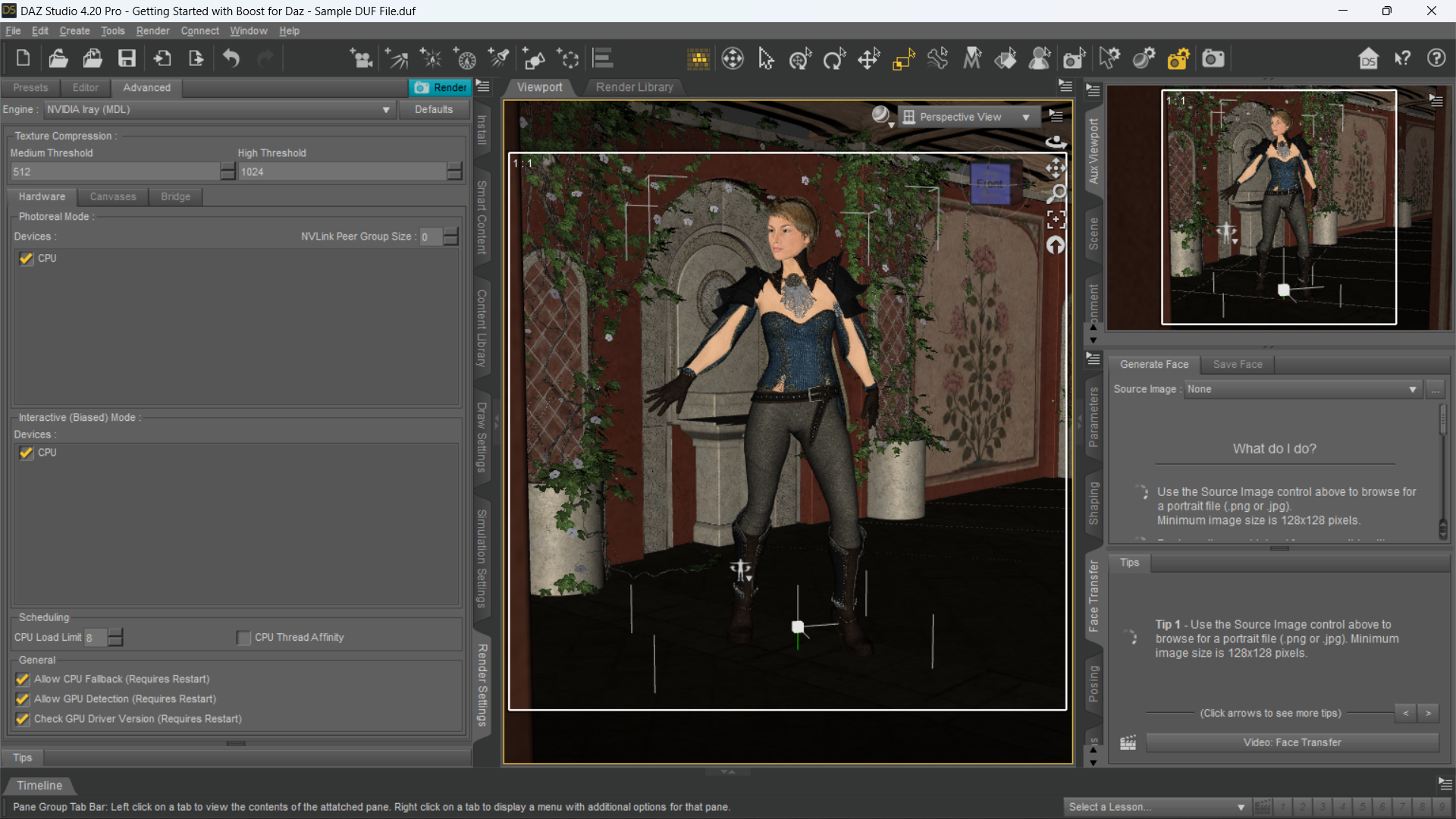
<figure><img src="/files/u976EuMbvi2gpzUDPpXH" alt=""><figcaption><p>Default Screen: Getting Start with Boost for Daz .duf file</p></figcaption></figure>

To use this sample .duf file to kick the Boost for Daz tires:

1. [Download the sample .DUF](#1.-downloading-the-sample-.duf-file) file to a folder on your local computer
2. Sign up with Boost for Daz and select your GPU and Render Mode (Streaming or Queue)
3. Render this .duf file with a Boost for Daz GPU of your choice

If you have any issues or concerns as you do this, feel free to reach out to support. You can do this via email at <support@boostfordaz.com>,  or joining our [Boost for Daz community discord server](https://discord.com/invite/boostfordaz) (recommended).  Experts and peer artists alike are available to help you.

#### 1.  Downloading the Sample .DUF file

Click on the link below to download the sample .DUF file to your a folder on your local computer.

{% file src="/files/XBPilJdu6S0ygUDSxB1c" %}

#### 2.  Sign up for Boost for Daz

Go to [Boost for Daz](https://boostfordaz.infinite-compute.com/), and select from one of the options to sign in with any Google-account.  (*Your email does not have to be a Gmail account.  Any email address can be registered as a Google-account.  You learn more about to do that right* [*here*](https://support.google.com/accounts/answer/27441?hl=en)*.*)

<img src="/files/a13KQJTQXcrZPzb5FPny" alt="" data-size="original">

#### 3.  Render the .DUF file

Follow the process steps on your Boost for Daz dashboard to render this file.  [Learn more about the Boost for Daz render process and optimal settings](/using-boost-for-daz/setup-and-configuration/steps-for-rendering-streaming-or-queuing).


# Iray Server settings to maximize render performance for large format (> 2000x2000) scenes

Iray Server Admin settings to optimize performance when rendering large format scenes

Let's define a **large format scene** as anything **greater than 2000x2000** pixels.  This tip is also relevant if - in addition to have a large format scene - you also have **multiple canvases**.&#x20;

Below you'll find two tips to *maximize your render performance speed* if your scene meets that definition:

#### 1.  Turn Off CPU

{% hint style="info" %}
***NOTE***:  Please make sure that you have properly sized your project/scene and you have [selected the right GPU](/extras/top-tips-and-tricks/pick-the-right-gpu-for-your-specific-project) for optimal rendering.
{% endhint %}

Once you get your Boost for Daz private virtual server assigned, and **before you start your render session**, sign into Iray Server Admin.  Go to the *Resources* tab, and scroll down.  You should see:
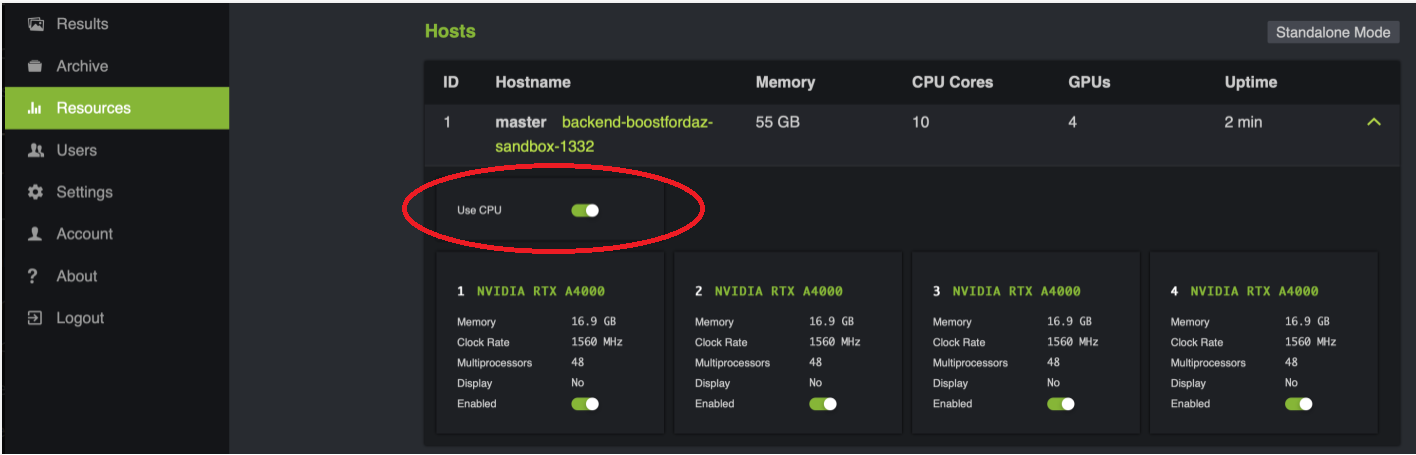
<figure><img src="/files/nD8ES5ZzDdqYTYDVWb5O" alt=""><figcaption><p>Iray Server Admin - CPU Toggle is ON</p></figcaption></figure>

Click on the 'Use CPU' toggle button to turn off the CPU.&#x20;

<figure><img src="/files/Zu3dIJ6xOdLY6TPrA9v0" alt=""><figcaption><p>Iray Server Admin - CPU Toggle is OFF</p></figcaption></figure>

Turning the CPU off prior to rendering just isolates the rendering to the powerful GPU's and gets the CPU out of the way and should speed  up the rendering time.

#### 2.  Change the preview/results Canvas Update Interval value to 2.5 hours (9000 seconds)

Most artists use a single canvas for their projects, but you can use multiple.  When a large format file WITH multiple canvas is rendered with Iray Server, the Canvas Update Interval value can be a factor to consider in optimizing that experience.  The reason?\
\
The *large file format* x *number of canvas* = increased update/saving times.  And with a small update interval, the Iray Server will probably be constantly updating - and during this time no new upload (i.e. snapshot) can be created and added to the queue.    &#x20;

The *default* value is *8 seconds.* Reviewing the definition of Canvas Update gives us a deeper sense as to why this matters:

<figure><img src="/files/k2eC0z9PPNTFCOep0BhO" alt=""><figcaption><p>Canvas Update Interval setting in Iray Server Admin. Default is 8 seconds.</p></figcaption></figure>

So every 8 seconds (as a default) the renderer exports results of the active job to the disk, and this includes thumbnails and preview images as well as the results.  For smaller scenes this might be ample time...but on large format renders - and multiple canvases - this can potentially lead to you experience two issues.

1. *The Queue will not accept jobs while the preview/results are being updated -* for small format (e.g. 900x900 etc.) you never hit this.  However, for large format scenes - with the interval set to 8 seconds - a worst case scenario is that you Iray Server is *always busy* updating the preview/results.  And no matter how many CPU cores we throw at the server, it's just too busy when fetching data from the GPUs. (At the time of this writing, this true in Iray Server 3.44 and 3.45 and we're testing Iray Server 3.50 and 3.51 but expect them to be the same.)  As mentioned above, this save/update time increases with each additional canvas in your project.
2. *Appears that Iray Server is stuck or crawling* - It is possible that your Iray server, when set at the default of 8 seconds, will spend 8 seconds of rendering and then 20 to 300 seconds of updating the preview/results...then 8 seconds of rendering again.  This make it seem like your Iray Server is stuck or crawling.

To change the Canvas Update interval value, go to the *Settings* tab, scroll down to the Results section:

<figure><img src="/files/9Z9heSrJEedDFiUGHmvw" alt=""><figcaption><p>Canvas Update Interval default value</p></figcaption></figure>

To maximize render performance, change the Canvas Update Interval value from the default of 8 seconds to **9000 seconds (2.5 hours)**.  Practically this means that preview/results will be saved when your job hits your iterations limit; your maximum render time limit (if set); or your convergence threshold target (render is finished).

<figure><img src="/files/u0KADRz8WiGm7bcMWOOw" alt=""><figcaption><p>Recommended Canvas Update Interval value of 9000 sec (2.5 hours)</p></figcaption></figure>


# Goodies

Additional elements that support and encourage our Boost for Daz Community

#### Boost for Daz Watermarks

To download and use these Boost for Daz watermarks (PNG format), click on the appropriate link. The file will open up in a browser tab and you can save that file to your local drive for us.

{% hint style="warning" %}
The terms and conditions for using these watermarks are as follows:

* This is a voluntarily use case.  Boost for Daz customers are not required to use this watermark.  Those who find Boost for Daz a valuable resource in their Daz creative journey are invited (and encouraged) to share the love.
* The watermarks have to be used only on images or animations rendered on Boost for Daz. &#x20;
* Infinite-Compute (the company that created and offers the Boost for Daz service) does not take any responsibility now or into perpetuity for the artwork that this watermark is used on.&#x20;
* All Daz artists are solely responsible for their work and for respecting all copyrights and intellectual property laws in their country and acceptable terms of use in the global Daz artist community.
  {% endhint %}

<table><thead><tr><th width="246">Boost for Daz Watermark</th><th>Download  Link (Google Drive)</th></tr></thead><tbody><tr><td><img src="/files/paqQCXm15c3qRjgpoArM" alt=""></td><td><p>For use on <strong>lighter</strong> backgrounds</p><p><a href="https://drive.google.com/file/d/1zeXfBGZMcNcN3lNbK5zXjVj6bdBqDpGR/view?usp=sharing">https://drive.google.com/file/d/1zeXfBGZMcNcN3lNbK5zXjVj6bdBqDpGR/view?usp=sharing</a></p></td></tr><tr><td><img src="/files/2LcVhz1WtrW7F1MSoE9c" alt=""></td><td>For use on <strong>darker</strong> backgrounds (<em>yup, we know this one is hard to see with white on white transparency, but it's there!</em>)<br><br><a href="https://drive.google.com/file/d/12ZlbV4ikXYH7u7vOQO_KqK1sUeFZCKUA/view?usp=sharing">https://drive.google.com/file/d/12ZlbV4ikXYH7u7vOQO_KqK1sUeFZCKUA/view?usp=sharing</a></td></tr></tbody></table>